Showing posts with label flatpak. Show all posts

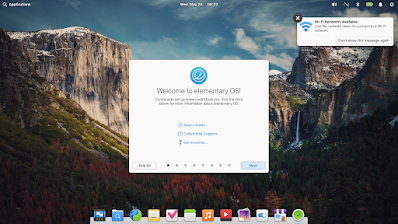
This tutorial will help you with useful suggestions to do for using elementary OS 7 on your computer for the first time. It will help you add applications, games, stuff important for your work & daily activities, and some recommendations. We wish you great experience in computing with OS 7. Now let's read on!

Subscribe to UbuntuBuzz Telegram Channel to get article updates.

Endless OS 5 officially released Friday, 27 January 2023. The OS 5 is the fifth major version of Endless GNU/Linux, a Debian-based free software distribution aimed to empower public education especially people with no internet access, conveying learning contents like the offline Wikipedia, powered by GNOME, Flatpak and OSTree technologies. This article will show you download links, how to download OS 5, verify its authencity before installing it to your computer. Happy downloading!

(Albanian Ferrie Boat -- a photo by Shan Dem from Unsplash.com is
the official wallpaper of Endless OS 5)

Subscribe to UbuntuBuzz Telegram Channel to get article updates.

Canonical announced that now Ubuntu 21.10 Impish Indri has reached End of Life (EOL). This means your Impish computer will not be able to install applications anymore, nor receive any security updates, although it can still be used without any time limits. This tutorial will explain how to check that out and add support provided by Canonical and also third-parties. 

Subscribe to UbuntuBuzz Telegram Channel to get article updates.

This article explains how you can install OpenShot Video Editor on Ubuntu. OpenShot is a simple, very easy to use free software to edit videos that is suitable for general purpose users including teachers at school. This works with the OS version 22.04 and later as well as 20.04 and before.

Subscribe to UbuntuBuzz Telegram Channel to get article updates.

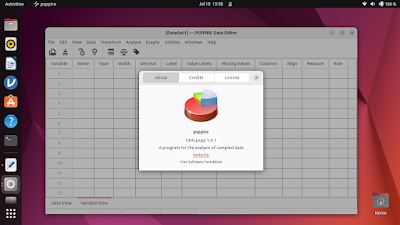
This tutorial will explain in step by step how you can install GNU PSPP on Ubuntu 22.04 and any other versions. This includes instructions for version 20.04 users and older/unsupported ones which cannot install PSPP using the normal way. Finally, this article accompanies our previous one Libre SPSS Alternatives for Ubuntu Users. Now let's install it.

Subscribe to UbuntuBuzz Telegram Channel to get article updates.

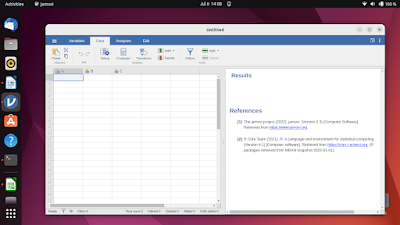
This tutorial will explain in step by step how you can install jamovi, a free and open source statistical analysis software, a user-friendly alternative to SPSS on Ubuntu. This is not to be confused with JASP, another free software for statistics, which we have already covered at Ubuntu Buzz. We use the OS version 22.04 "Jammy Jellyfish" and this should be sufficient for any later OS version as well. Let's install it.

Subscribe to UbuntuBuzz Telegram Channel to get article updates.

This article will explain in step by step to install JASP free software on Ubuntu 22.04 LTS Jammy Jellyfish. With this, you will have a Libre and Open Source alternative to SPSS, the statistical analysis program used in universities. Let's install it.

Subscribe to UbuntuBuzz Telegram Channel to get article updates.

Do you still use an older or unsupported Ubuntu on your computer? Don't want to upgrade for some reason? Then, you might want to update or install some new applications but you find it impossible. Good news for you! There are several solutions to fulfill these needs, which are, by making use of Flatpaks, AppImages and Snaps (let's call them FAIS for easier naming). Let's see how FAIS help us to run latest versions of LibreOffice, OnlyOffice, FreeCAD, Nextcloud Server some games and many more on Xenial Xerus (16.04 LTS) as the following. We deliberately chose Xenial so you can be sure that running them on newer Ubuntu will work.

Subscribe to UbuntuBuzz Telegram Channel to get article updates.

This tutorial explains how you can install LibreOffice version 7.0 and later on an Ubuntu computer with several choices of installation methods namely AppImage, DEB, PPA, Snap and Flatpak sorted by difficulty from beginner to advanced. Thanks to these choices, you who have computer with GNU/Linux distros other than Ubuntu can also practice this. Now let's install it.

Subscribe to UbuntuBuzz Telegram Channel to get article updates.

Fedora 34 released this year. 


Part 1, Flatpak Integration

What is Flatpak? Flatpak to GNU/Linux users in a simplest sense is like APK to Android users, EXE to Windows users and DMG to MacOS users, that is, a name of application format they can run for their OS. In the future, you will often see Download Flatpak option beside of Download EXE and Download DMG options for the same application everywhere.

As a summary, F34's integration of Flatpak means, in the future, Fedora users would be able to install applications and games they like from Software with the way of Flatpak. Everything about Flatpak on F34 is mostly centered at Software including adding new repository and removing installed apps. Our experience in general is that in the beginning F34 works very slow, crashes often, even stopping other programs to run when installing Flatpak.

Our specification to do this F34 Flatpak review:

  • Internet access with 6MB/s download speed.
  • F34 installed on 32GB disk with Btrfs filesystem.


Flatpak Advantages

What advantages does F34 get from Flatpak integration? Among them:

  • Unifying end-users' method to get apps for their computers.
  • Unifying software developers in delivering their apps and updates to end-users.
  • Availability of software cannot be obtained in standard way. For example, Natron.


First Step

Our first steps to try F34's Flatpak is:

1. We upgrade Fedora system to its fullest.

2. We run Software.

3. We wait for it preparing.

4. Software displays all applications available. 

5. We explore for apps and games available.

6. We install multiple apps and games which are Flatpaks:

  • ZeroAD, an ancient warfare strategy game.
  • Red Eclipse, an excellent first person shooting.
  • FeedReader, a news subscriber program.
  • GIMP, the image editor of FLOSS community.
  • Inkscape, the vector editor.
  • SuperTuxKart, a cute and playful 3D racing game.
  • Stellarium, a beautiful desktop planetarium.
  • OBS Studio, a professional crossplatform broadcasting tool.
  • Kooha, a simple desktop screencast recorder.

Once installed, these apps will be displayed on Activites Menu on Fedora.


Application Information Displayed

Every application has its own detailed information. One can learn what to be installed to his/her computer by reading that information. We report here from top to bottom of Software window.

- App format chooser

- App name

- App picture(s)

- App description 

- App version history

- App details (repository, license, size)

- App rating and review

In terms of Flatpak, format chooser and app details are the most important sections. Under format chooser, user can select to install an app either from standard version (RPM) or Flatpak version. By default, Fedora 34 has its own Flatpak repository (registry.fedoraproject.org) and if user adds Flathub (see next section), then the choices increased by one that is Flathub (dl.flathub.org). The check sign (🗸), if any, signifies that an app is installed from either RPM or Flatpak.

App details section supplies more detailed information regarding the application, depending on what is selected in the format chooser. User can see app's repository address, download size, installed size, security (sandboxed or not), age rating, and more. Below are several examples. However, we found many information incorrect especially on the licensing.


Zeroad: available in 3 versions RPM, Fedora Flatpak and Flathub Flatpak; license displayed (incorrectly) as Proprietary; 500MB download size from Flathub.org.

Natron: available only in Flathub Flatpak version; licensed as Free Software (GPL-2.0+); and 600MB download size.

Firefox: available in 3 versions too; license displayed as Free (but incorrectly as GPL-3.0+); and 700MB download size from Fedora Flatpak, 300MB from Flathub.


Flathub Integration

What we do to make F34 able to install applications from third party source, Flathub.org, is as following:

1. Open Firefox at www.flathub.org

2. Visit Quick Setup. 

3. Select Fedora. 

4. Click Flathub Repository File button.

5. A download dialog opened with Open With Software Install option.

6. Click Save. 

7. Software opened with Flathub offering and an Install button.

8. Click Install.

9. Now, Software can install apps from Flathub.org.


Apps Available at Flathub.org

Flathub is a third-party application download center and contains many apps not available at the first-party Fedora's Flatpak repository. However, Flathub also distributes Proprietary Software (*). Examples of applications available at Flathub among others:

  • Beyond All Reason
  • OBS Studio
  • Kooha
  • Kdenlive
  • Blender
  • Super Tux Party
  • Steam*
  • BitWig Studio*

These apps can be seen via Software and recognized to be from Flathub by its detailed description of Source.


Install Apps from Flathub

What we do to install apps from Flathub is as following:

1. Browse Flathub.org website with web browser.

2. Explore apps available. 

3. Click one app and its web page will open. For example, OBS Studio.

4. Click Install button then download window will open and click Save.

5. Software will display the application. In this example, OBS Studio.

6. Make sure the application is Flatpak and from dl.flathub.org address at the top or middle of the display. If it is RPM instead, switch it first to Flatpak dl.flathub.org option.

7. Click Install.

8. Application installed. 

In this example, OBS Studio can be accessed from the Activities Menu.

Running The Applications

Once installed, Flatpak applications are displayed on Activities Menu on Fedora. We report here, in brief, how Fedora runs each application and the results we receive are good. 

Inkscape and Gimp can normally open and save file, grab photos from external drag-and-drop, as well as do graphic drawing as usual.

OBS Studio can record audio and video, for livestreaming or screen sharing purposes, and the file can be played normally. We do no configuration to make webcam and microphone work.

Kooha can record the screen and our voice, saved as video file, and the file can be played later normally. We do no configuration to make the microphone works.

ZeroAD and Red Eclipse can normally be played with full resolution and audio on. And Fedora system can switch among running windows while both running.


(F34 with ZeroAD, FeedReader, Gimp and Red Eclipse running -- ordered clockwise from the left)

Issues with Flatpak

There are several Flatpak issues we encountered on F34:

1. Speed, we experienced our system to be slow and sluggish at initial use with F34 and it mostly was caused by Flatpak.

1. Size, Flatpak is internet & disk space hungry, as the individual application size is too big at the beginning it quickly drains our internet bandwidth out (unless we use an unlimited one), and our disk space too. In addition, the real reason why it works very slowly is that F34 needs to download and install a 2GB SDK for F34 first as it is the "secret" initial requirement for us to install more Flatpaks. You may easily find a Flatpak app 10 times (or more) the size of same RPM app. For example:

2. Freeze, our system experienced hang multiple times and even unrelated programs (Firefox and Nautilus) could also experience "Not Responding" while Flatpak is installing or ongoing automatic upgrade at the background. The symptom is the freezing programs ask for 'either Wait or Force Quit'.

3. As mentioned, incorrect information, as Software often wrongly stated each application's license. For example, it says ZeroAD, a GPL licensed game, is Proprietary, that is clearly wrong. 


Flatpak Summary

Fedora already did a great job in Flatpak integration. They made their own Flatpak repository and made it easy to add Flathub.org. The initial experience is very poor, it is very slow and almost often freezing the system, although how to use it is already clear enough. Also, we think the incorrect licensing information displayed on Software is a deep issue they should fix as soon as possible.

About the functionality? The apps and games we installed work well. OBS and Kooha can record screen (even camera) into videos. Those games can be played normally, with great visuals and audio, we could not tell that they use a different technology.

On Flatpak, in general we want to say F34 works but with a very poor initial experience.

To be continued to part 2...


This article is licensed under CC BY-SA 3.0.

It's a review of elementary OS 6, codenamed Odin, a computer operating system that proudly released with the slogan Thoughtful, capable, and ethical replacement to Windows and MacOS that's now empowering modern laptops that ship worldwide. Let's see OS 6 through this review.

Subscribe to UbuntuBuzz Telegram Channel to get article updates.

This tutorial explains computer users how to quickly, easily download and install applications on GNU/Linux by using Flatpak. Flatpak, with its apps download website Flathub.org, is a new technology to make end-users easily get apps they want regardless their distro choices and versions. We will learn by example using Fedora Workstation here and it is applicable to other distros. Let's start app hunting!

Subscribe to UbuntuBuzz Telegram Channel to get article updates.

Flatpak is one standardized way for computer end-users to get applications on any GNU/Linux distro any version. With Flatpak there is Flathub, a central place on the internet where users can download applications in Flatpak format like LibreOffice, 0AD Strategy Game, and VLC Media Player. Now, there are several distros which included Flatpak out-of-the-box (called "Flatpak distro" here) so their users could simply click and install applications they want. This article is a simple, practical explanation of Flatpak for everyone especially computing beginners. Let's dive in!

Subscribe to UbuntuBuzz Telegram Channel to get article updates.

Elementary OS launched version 6 Beta a while ago so everybody can download, try, test and report issues to get involved in its public software development. Through this article, I invite dear Ubuntu Buzz readers to test this Beta version too. Most notable changes in this Beta version are Dark Theme, the new installer, a new app called Tasks, and the major shift to Flatpak for the App Center. Special for application developers, you are now advised to learn packaging your app as a Flatpak. However, this Beta version is still in rapid development and you are advised not to install it on your main computers as there are still issues and possibility to loss data. Finally, we are waiting for the next Release Candidate before the Stable Release. Let's try it together!


Announcement:

https://blog.elementary.io/elementary-os-6-odin-beta

Distrowatch:

https://distrowatch.com/?newsid=11234

Download:

https://builds.elementary.io

Join the development:

https://github.com/orgs/elementary/projects/55

Join users discussions:

Mastodon | Twitter | Reddit | Facebook


This article is licensed under CC BY-SA 3.0.

We're happy LibreOffice 7.0 finally released early August this year. This tutorial explains things for you wanting to get it on Ubuntu 20.04 LTS Focal Fossa. This tutorial offers you standard ways (Deb) as well as alternative ways (AppImage, Flatpak, Snap) you may choose to install it. For merely testing purpose you must start with the AppImage one as it is safest to your system. Finally, congratulations to LibreOffice community and gratitude to all the developers! Happy writing!

Subscribe to UbuntuBuzz Telegram Channel to get article updates directly.

Aside from the official way to install Zotero, which is manually done, there are alternative ways you may choose which are more automatic. They are DEB, Flatpak, and Snap, and I have tested them working on Ubuntu 20.04. In effects, with one of these, you do not need to configure things manually anymore. I suggest you to try any of these ways only if you found the official way unsuccessful. I also included the uninstallation procedures and also how to install the addons below. So let's go!

 (Software Center showing Zotero flatpak-version ready to install and Zotero Standalone snap-version window running beside it showing several Wikipedia pages stored)
Subscribe to UbuntuBuzz Telegram Channel to get article updates directly.

With this article you can turn Ubuntu Focal Fossa into a full professional graphic design system. This enables mass resize pictures by one click. You are given 2D and 3D graphic editing tools for both raster and vector types including animation suite and video production. For photography, I include here darkroom tools and camera management software. Last but not least, I also include a game engine which is able to produce cross platform video games. I listed them here alphabetically with necessary information I think important placed under every name. All applications below are free software. I hope this article will be useful for you. Happy designing!


Subscribe to UbuntuBuzz Telegram Channel to get article updates directly.

The professional free graphic design software Inkscape released version 1.0 few moments ago for all computer operating systems. Now Ubuntu users ask how to install it on Ubuntu and also on other GNU/Linux distros. Fortunately, we have a standard way to install it, and alternatively you can choose other method as you wish including portable and the 32-bit architecture versions. For all users in general I recommend more to try the AppImage version as it is the easiest one. Enjoy!

(Focal Fossa with Inkscape version 1.0)
Subscribe to UbuntuBuzz Telegram Channel to get article updates directly.

LibreOffice is not included by default in elementary OS unlike in other distros. But because you will need it, and many Windows users switching will also need it, I write this tutorial to install and to use it. LibreOffice is free (as in freedom) software, it fulfills rights of all users and community, so it's better than MSO or WPS/Kingsoft and that's why most GNU/Linux distros include it by default and I present it to you here. Enjoy!

Subscribe to UbuntuBuzz Telegram Channel to get article updates directly.

elementary OS 5.1 is a "service pack" update of 5.0 released recently at 3 December 2019. It brings really a lot of new features and redesigns. This article tries to cover 6 things from the beginning to the end including the new redesigns, its ISO contents, and Flatpak support. Enjoy the new elementary OS!


Subscribe to UbuntuBuzz Telegram Channel to get article updates directly.