Showing posts with label deb. Show all posts

This tutorial will help you install LibreWolf, a privacy-promising web browser derived from Firefox, on Ubuntu 24.04 "Noble Numbat". It is available in Ubuntu standard format DEB although it comes from its own repository as today it is still not available in the official repository. Finally, it can be considered as an alternative to the preinstalled Firefox which comes in Snap format and both can be used together. Now let's install it!


Subscribe to UbuntuBuzz Telegram Channel to get article updates.

After you have Synaptic installed and you are ready, now this tutorial will quickly introduce and help you to practice installing, removing, and upgrading software packages with examples on Ubuntu 24.04 "Noble Numbat" using Synaptic Package Manager. You will learn by exercises, without knowing too much details about Synaptic. We hope with this tutorial you can work immediately with your new Ubuntu machine by having applications, games and utilities you need the most at the same time getting to know more about Ubuntu itself. Now let's start the exercise!

(Synaptic and GIMP on Ubuntu 24.04)

Subscribe to UbuntuBuzz Telegram Channel to get article updates.

This is a simple beginner's guide for Ubuntu users to install, remove and updates software packages including applications and games on 24.04 "Noble Numbat". You will learn about App Center as well as APT and Snap here. With this tutorial, we hope you can practice your computing with Ubuntu and Free/Libre Open Source Software to the maximum. Now let's practice!


Subscribe to UbuntuBuzz Telegram Channel to get article updates.

This tutorial will help you to configure your Ubuntu 24.04 "Noble Numbat" computer to use nearest mirror server for the purpose of faster installing and updating applications. This will introduce you to Software & Updates settings as well as the new configuration file ubuntu.sources that comes with this release. Now let's learn and install more applications!


Subscribe to UbuntuBuzz Telegram Channel to get article updates.

This tutorial will help you to get LibreOffice 7.6 on Ubuntu side-by-side with and without removing the preinstalled version. We offer several ways you may choose to do so. It can be practiced to any one of Official Flavors like Kubuntu and Lubuntu, as well as derivatives like Elementary and Zorin. Now let's practice that.


Subscribe to UbuntuBuzz Telegram Channel to get article updates.
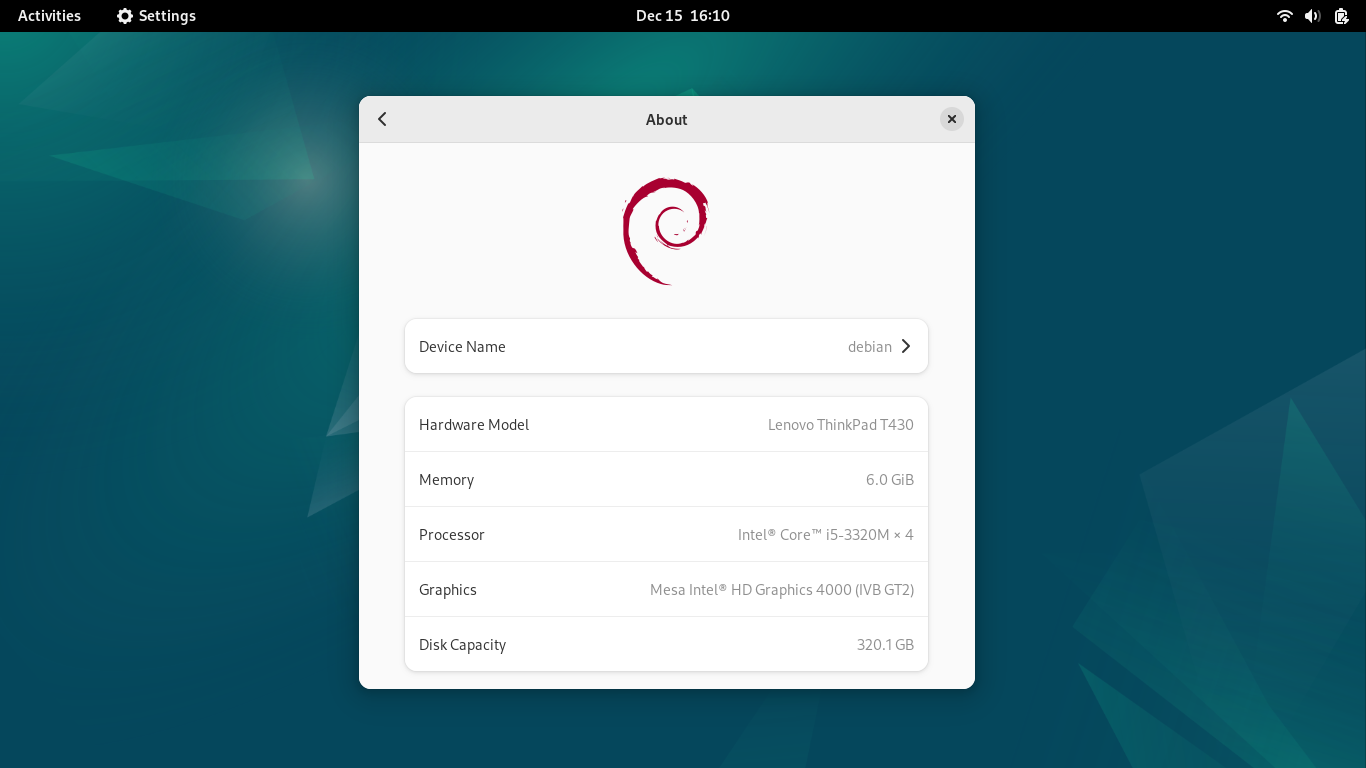
This tutorial will explain Debian repository and how to configure to use it to install and update software packages. You will learn about sources.list configuration file as well as Software & Source graphical configuration program to practice it. Debian GNU/Linux is a complete computer operating system alternative to Windows and MacOS as well as the most respected community-managed free software distribution. We hope this tutorial will be helpful to you. Now let's practice.


Subscribe to UbuntuBuzz Telegram Channel to get article updates.

We're happy LibreOffice 7.0 finally released early August this year. This tutorial explains things for you wanting to get it on Ubuntu 20.04 LTS Focal Fossa. This tutorial offers you standard ways (Deb) as well as alternative ways (AppImage, Flatpak, Snap) you may choose to install it. For merely testing purpose you must start with the AppImage one as it is safest to your system. Finally, congratulations to LibreOffice community and gratitude to all the developers! Happy writing!

Subscribe to UbuntuBuzz Telegram Channel to get article updates directly.

Aside from the official way to install Zotero, which is manually done, there are alternative ways you may choose which are more automatic. They are DEB, Flatpak, and Snap, and I have tested them working on Ubuntu 20.04. In effects, with one of these, you do not need to configure things manually anymore. I suggest you to try any of these ways only if you found the official way unsuccessful. I also included the uninstallation procedures and also how to install the addons below. So let's go!

 (Software Center showing Zotero flatpak-version ready to install and Zotero Standalone snap-version window running beside it showing several Wikipedia pages stored)
Subscribe to UbuntuBuzz Telegram Channel to get article updates directly.

The professional free graphic design software Inkscape released version 1.0 few moments ago for all computer operating systems. Now Ubuntu users ask how to install it on Ubuntu and also on other GNU/Linux distros. Fortunately, we have a standard way to install it, and alternatively you can choose other method as you wish including portable and the 32-bit architecture versions. For all users in general I recommend more to try the AppImage version as it is the easiest one. Enjoy!

(Focal Fossa with Inkscape version 1.0)
Subscribe to UbuntuBuzz Telegram Channel to get article updates directly.