Showing posts with label synaptic. Show all posts

This is the second compilation of our Ubuntu 24.04 Noble Numbat tutorials which have been published here at The Ubuntu Buzz since 2024. In last compilation, we talked about downloading Ubuntu up to selecting our repository server among others. In this episode, we will remind you about CHM ebooks, AppImages, Telegram Desktop as well as the classic but powerful Synaptic Package Manager with a short review for each. We hope this compilation series will be useful to you and everyone. This marks our last article of that year in the month May. Please enjoy!


(Telegram Desktop running peacefully showing KDE Channel on Ubuntu Noble)


Subscribe to UbuntuBuzz Telegram Channel to get article updates.

After you have Synaptic installed and you are ready, now this tutorial will quickly introduce and help you to practice installing, removing, and upgrading software packages with examples on Ubuntu 24.04 "Noble Numbat" using Synaptic Package Manager. You will learn by exercises, without knowing too much details about Synaptic. We hope with this tutorial you can work immediately with your new Ubuntu machine by having applications, games and utilities you need the most at the same time getting to know more about Ubuntu itself. Now let's start the exercise!

(Synaptic and GIMP on Ubuntu 24.04)

Subscribe to UbuntuBuzz Telegram Channel to get article updates.

This tutorial will help you install Synaptic on Ubuntu 24.04 "Noble Numbat". With Synaptic, you can search and install and remove and update software packages easily by clicks rather than command lines (GUI rather than CLI). It will be easy to you to access by putting its shortcuts on Dash left panel and desktop wallpaper area. This article is part of a larger series Package Management System on Ubuntu Buzz. We wish this will be beneficial and useful to you. Happy installing packages!


Subscribe to UbuntuBuzz Telegram Channel to get article updates.

Backports repository is useful for Ubuntu users who want newer versions of certain software packages (including development tools, hardware drivers) only available in the newer OS release. For example, in Focal, we only get LibreOffice 6.4 at best, while to get LibreOffice 7 we usually should upgrade the OS version instead the software version. How to upgrade the software only? Ubuntu gives us Backports repository in order to solve this issue. This tutorial will explain in simple manners with examples to do that. 


Subscribe to UbuntuBuzz Telegram Channel to get article updates.


After examples of productive activities, I think it's time to know the ways to install more software on Trisquel GNU/Linux. Officially there is one way: run you Synaptic Package Manager and get software with it. This way gets you software from official Trisquel repository. That is the normal way we get more software on Trisquel. I will discuss how to do it first using Synaptic with internet access and later with Terminal without internet access. I consider it's enough to just download everything from official repository without third-party ones as it's guaranteed to be 100% free software. I hope this will help you a lot and make you days using Trisquel much more easier. Enjoy!

Subscribe to UbuntuBuzz Telegram Channel to get article updates directly.

When you install Synaptic from Ubuntu repository, perhaps you'll find the Search Bar is missing on the toolbar. It's the same when you do it in another GNU/Linux distro that does not bring Synaptic preinstalled. The problem is because apt-xapian-index package is not installed and configured. Here is the solution.

Solution


Run these command lines:
sudo apt-get install apt-xapian-index
sudo update-apt-xapian-index --verbose --force 

This picture shows what those commands doing:


This beginner's guide Part 5 explains how to use Synaptic Package Manager, an easy to use GUI program to manage software packages. Synaptic is a replacement to Apt-Get command line for casual end-users, it provides complete options in simple and user-friendly manner. By using Synaptic, you can do easy sources.list editing, proxy + auth setting, install/remove/upgrade package, and so on. And this guide is a continuation of Part 4 PPA & Third-Party Repository. I hope this will be easy and useful for everyone.

Subscribe to UbuntuBuzz Telegram Channel https://telegram.me/ubuntubuzz to get article updates directly.

At the old days, Ubuntu brought Synaptic Package Manager in every release until it completely replaced with Ubuntu Software Center at 11.10 Oneiric Ocelot. Synaptic and Ubuntu Software Center are basically same things (package managers) but different in features. Ubuntu Software Center (later called as USC) is easy to use for beginners. But for many reasons, somebody will need Synaptic again. For example, Synaptic has advanced settings and detailed information in every action it does (while USC hides almost all detailed information). So here is a guide to use Synaptic.

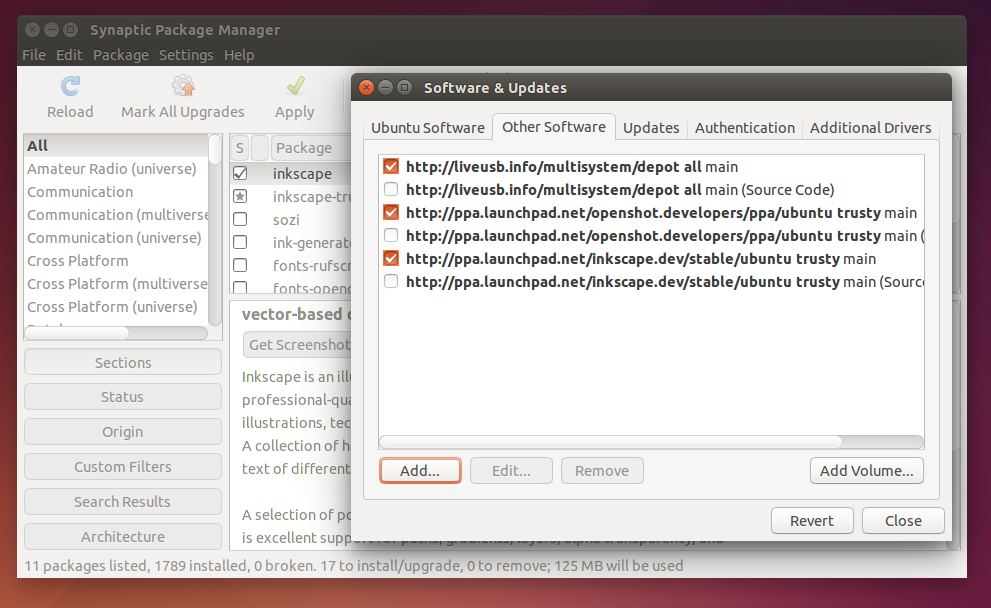
Installing and removing a PPA in Ubuntu is easy with GUI. If you usually install and remove a PPA via Terminal, then actually you can do it easier with Synaptic Package Manager. That is why we recommend Synaptic to you before. This article will show you how to do PPA installation in Ubuntu with Synaptic including the explanations.

Synaptic Managing PPA