Powered with latest technology of Free Libre Open Source Software aka FLOSS, comes with a brand new logo, got fantastically enjoyable user interface and experience, while being fast and ready to empower your computers, here's a pre-release overview of Ubuntu 22.04 LTS Jammy Jellyfish. We really found Ubuntu changed bravely this time with Snap adoption and Gimp re-inclusion. We'd love to discover these things for our beloved readers. Happy reading!
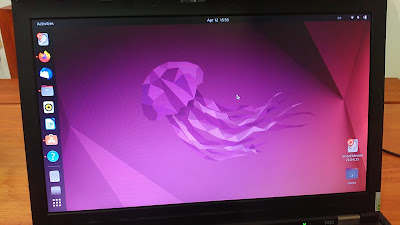
(Jammy Jellyfish beta running on ThinkPad laptop)
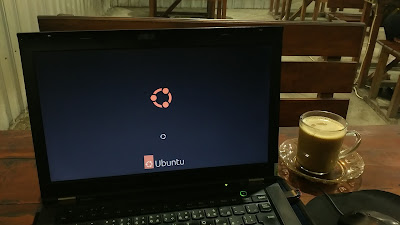
New Ubuntu Logo and Splash Screen
Ubuntu got a brand new logo! This is a big thing. We think this will be controversial, without doubt, but we admire the brave decision Canonical and The Ubuntu Developers made this time.
(Jammy in action on a local coffee shop)
New Jellyfish Wallpaper and User Interface
By the name Jammy Jellyfish, now we saw Ubuntu got a pink jellyfish as wallpaper! The user interface is now faster, more responsive, enjoyable to use thanks to its GNOME 42 desktop technology. This means end user will enjoy computing they need with fresh feelings.
(Aww, it's now Jellyfish!)
New Screenshot Tool
Thanks to GNOME 42 technology, now Ubuntu got a brand new screenshot tool. It's simpler, easier to use, and really refreshing to take as many as screen captures as we want. Not only that, it can also take screencast, or a video record of your screen activities.
(Taking screenshot on Jammy)
New Software Center
This is brave decision: Ubuntu Software now officially adopted Snaps. This means end users who install applications through Ubuntu Software will get them in Snap format from Snap Store not in DEB format from Ubuntu DEB repository anymore. However, experienced users can still install DEB packages normally by using APT or Synaptic.
(Software displaying 0 A.D. game with Snap versions displayed as drop down without any of DEB version)
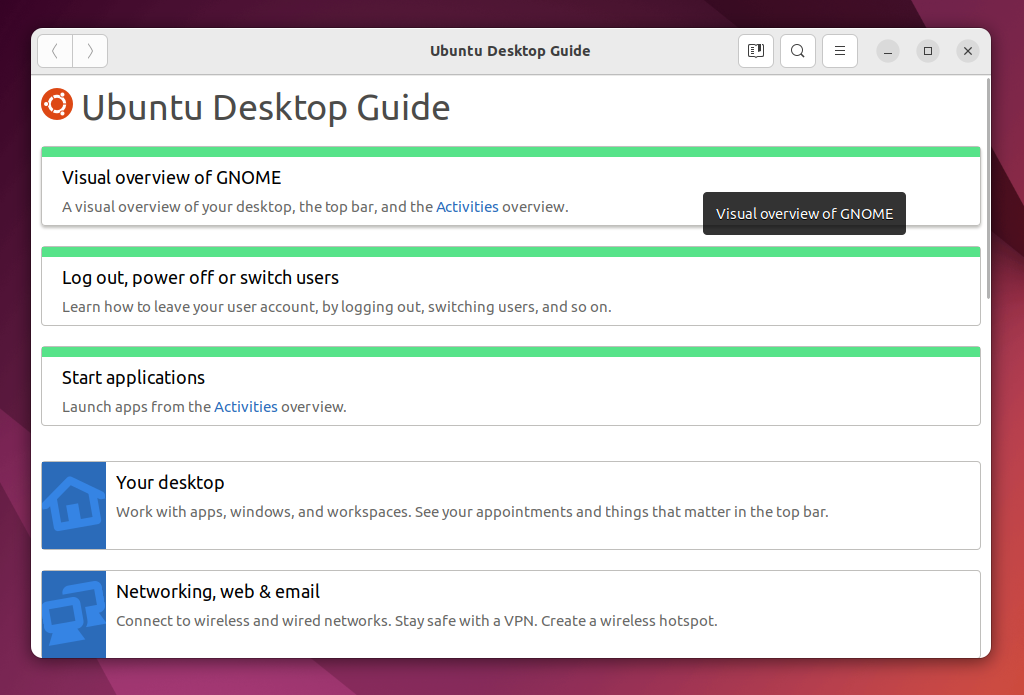
New User Guide Look
 The user manual documentation also got a refresh on its visual. This will help end users to find the most basic helps, as the ones placed on top, namely how to get started with desktop, how to run apps, and how to shutdown.
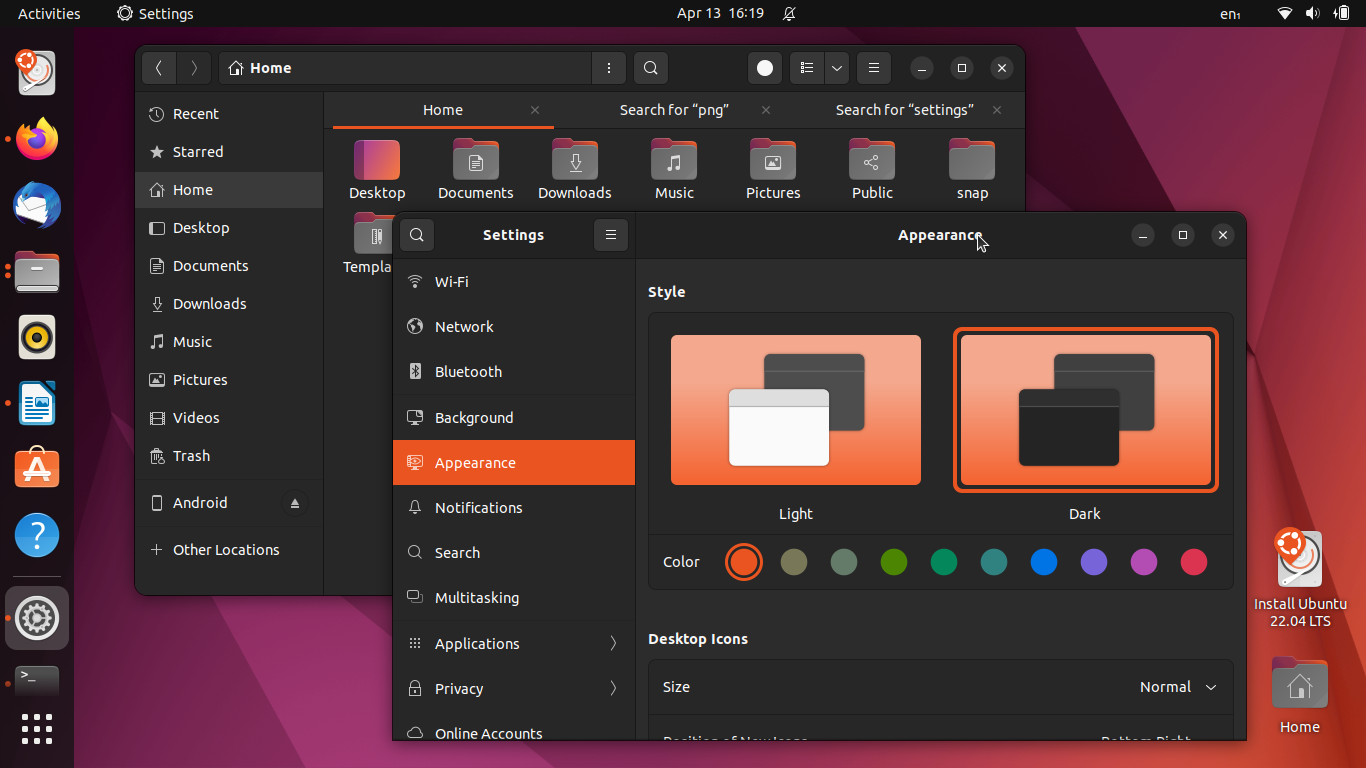
New Dark Theme
Many hard workers will love this: now Ubuntu features dark mode built-in! As an addition, Jammy also includes color themes choices as well as another rich options to its user interface. As reviewer, we're reminded to Deepin OS while first time looking at these.
(Dark mode!)
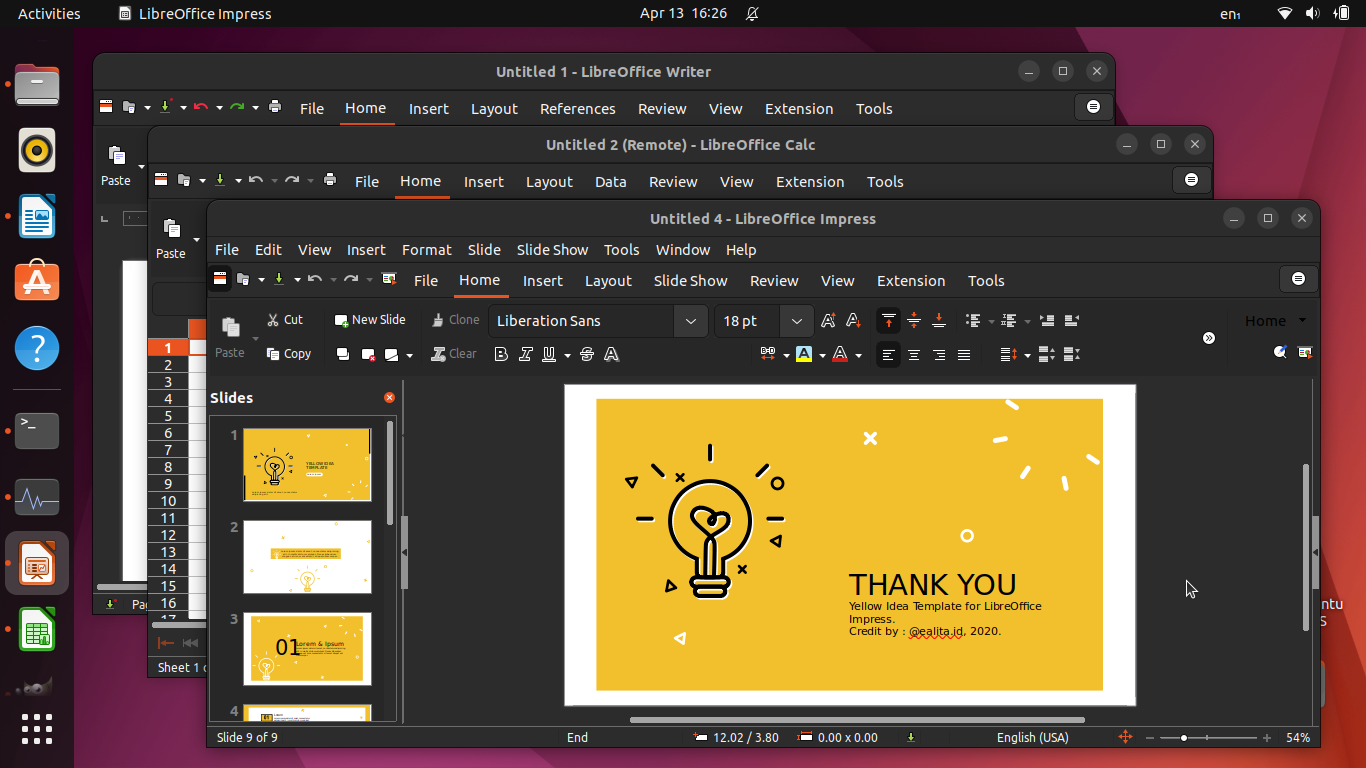
New Office
Ubuntu Office also known as
LibreOffice got freshly updated to version 7.3. Its user interface is nicer, more polished, and it looks so cool with Ubuntu's dark theme.
(Writer, Calc, Impress with Notebookbar user interface enabled under Ubuntu dark more look just so matched)
Lastly on this overview. Yes, Gimp, the Ubuntu Image Editor, is now included again on Jammy Jellyfish after many years since the golden era of GNOME 2. They're now a family again on Jammy. This means end users can edit and retouch their photos right within Ubuntu without needing to add any application.
(Gimp editing one of Jammy wallpapers with several UI adjustments)
Conclusions
Finally, we think this pre-release Ubuntu Jammy is really nice and we'd love to wait for the official release. We'd love to say thanks for Canonical and The Ubuntu Developers for making pre-release as enjoyable as this. We hope Ubuntu 22.04 LTS will release successfully and get worldwide reception. Thanks and see you next time!