Showing posts with label snap. Show all posts

 This tutorial will help you install Inkscape Vector Illustrator on Ubuntu 24.04 "Noble Numbat". With this, you can start your creativity and vector drawing jobs on Ubuntu and join the amazing community worldwide. We offer you here both standard and alternative ways and this will make it possible for you to have two different versions running at the same time. Finally, we also mentioned our tutorial series Inkscape for Students for you to start learning right away. Now let's start!


Subscribe to UbuntuBuzz Telegram Channel to get article updates.

This is a simple beginner's guide for Ubuntu users to install, remove and updates software packages including applications and games on 24.04 "Noble Numbat". You will learn about App Center as well as APT and Snap here. With this tutorial, we hope you can practice your computing with Ubuntu and Free/Libre Open Source Software to the maximum. Now let's practice!


Subscribe to UbuntuBuzz Telegram Channel to get article updates.

This tutorial will help you in using Snap Package Manager on your Ubuntu desktop, server and laptop. With Snap, you can install, update, remove and manage software applications as well as games available via Snapcraft.io supported by Canonical the United Kingdom company behind Ubuntu. Now we want to start with the examples included. Enjoy!


  (Nextcloud server and Xonotic shooting game running as Snaps)

Subscribe to UbuntuBuzz Telegram Channel to get article updates.

Canonical announced that now Ubuntu 21.10 Impish Indri has reached End of Life (EOL). This means your Impish computer will not be able to install applications anymore, nor receive any security updates, although it can still be used without any time limits. This tutorial will explain how to check that out and add support provided by Canonical and also third-parties. 

Subscribe to UbuntuBuzz Telegram Channel to get article updates.

Here's our review of Ubuntu 22.04 LTS "Jammy Jellyfish". It's incredibly late, for that we apologize, but it's better than never. We concluded this release as the best LTS ever and as a future of Free and Open Source Software (FOSS) computing. Please read on!

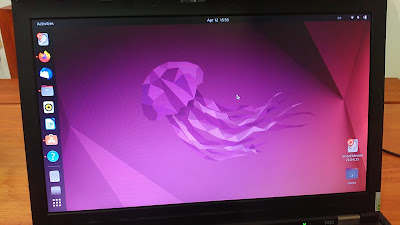
 (Ubuntu Jammy with our favorite wallpaper this release by arman1992)
Subscribe to UbuntuBuzz Telegram Channel to get article updates.

Do you still use an older or unsupported Ubuntu on your computer? Don't want to upgrade for some reason? Then, you might want to update or install some new applications but you find it impossible. Good news for you! There are several solutions to fulfill these needs, which are, by making use of Flatpaks, AppImages and Snaps (let's call them FAIS for easier naming). Let's see how FAIS help us to run latest versions of LibreOffice, OnlyOffice, FreeCAD, Nextcloud Server some games and many more on Xenial Xerus (16.04 LTS) as the following. We deliberately chose Xenial so you can be sure that running them on newer Ubuntu will work.

Subscribe to UbuntuBuzz Telegram Channel to get article updates.

Powered with latest technology of Free Libre Open Source Software aka FLOSS, comes with a brand new logo, got fantastically enjoyable user interface and experience, while being fast and ready to empower your computers, here's a pre-release overview of Ubuntu 22.04 LTS Jammy Jellyfish. We really found Ubuntu changed bravely this time with Snap adoption and Gimp re-inclusion. We'd love to discover these things for our beloved readers. Happy reading!

(Jammy Jellyfish beta running on ThinkPad laptop)


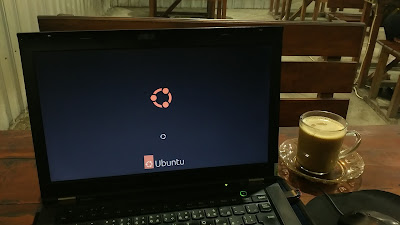
New Ubuntu Logo and Splash Screen

Ubuntu got a brand new logo! This is a big thing. We think this will be controversial, without doubt, but we admire the brave decision Canonical and The Ubuntu Developers made this time. 

(Jammy in action on a local coffee shop)


New Jellyfish Wallpaper and User Interface

By the name Jammy Jellyfish, now we saw Ubuntu got a pink jellyfish as wallpaper! The user interface is now faster, more responsive, enjoyable to use thanks to its GNOME 42 desktop technology. This means end user will enjoy computing they need with fresh feelings.

(Aww, it's now Jellyfish!)


New Screenshot Tool

Thanks to GNOME 42 technology, now Ubuntu got a brand new screenshot tool. It's simpler, easier to use, and really refreshing to take as many as screen captures as we want. Not only that, it can also take screencast, or a video record of your screen activities.

(Taking screenshot on Jammy)

New Software Center

This is brave decision: Ubuntu Software now officially adopted Snaps. This means end users who install applications through Ubuntu Software will get them in Snap format from Snap Store not in DEB format from Ubuntu DEB repository anymore. However, experienced users can still install DEB packages normally by using APT or Synaptic.


(Software displaying 0 A.D. game with Snap versions displayed as drop down without any of DEB version)

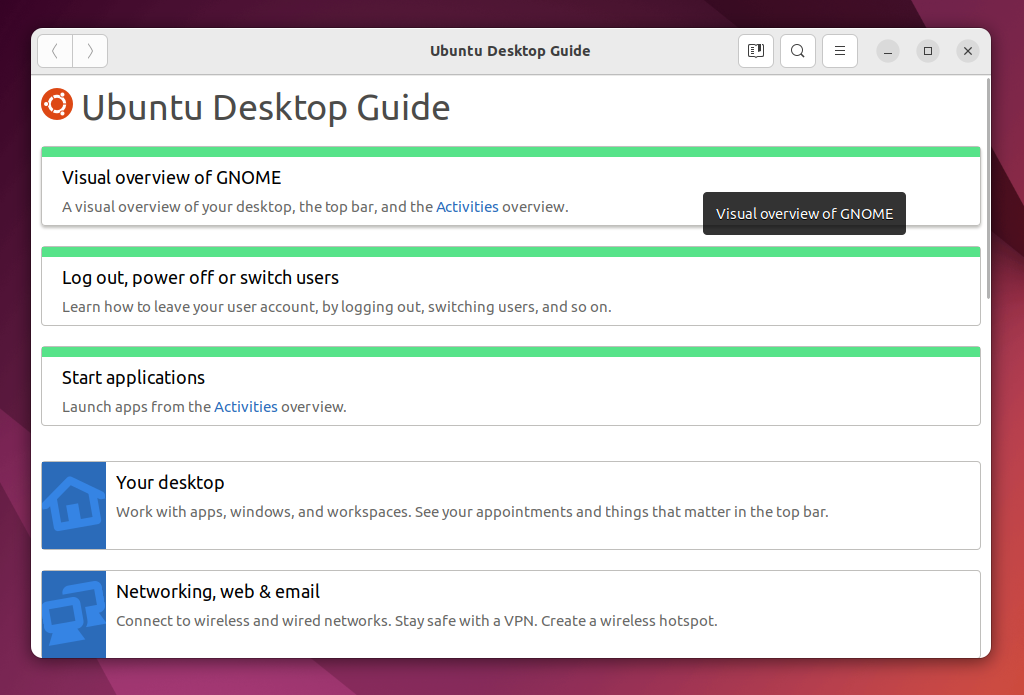
New User Guide Look

The user manual documentation also got a refresh on its visual. This will help end users to find the most basic helps, as the ones placed on top, namely how to get started with desktop, how to run apps, and how to shutdown.


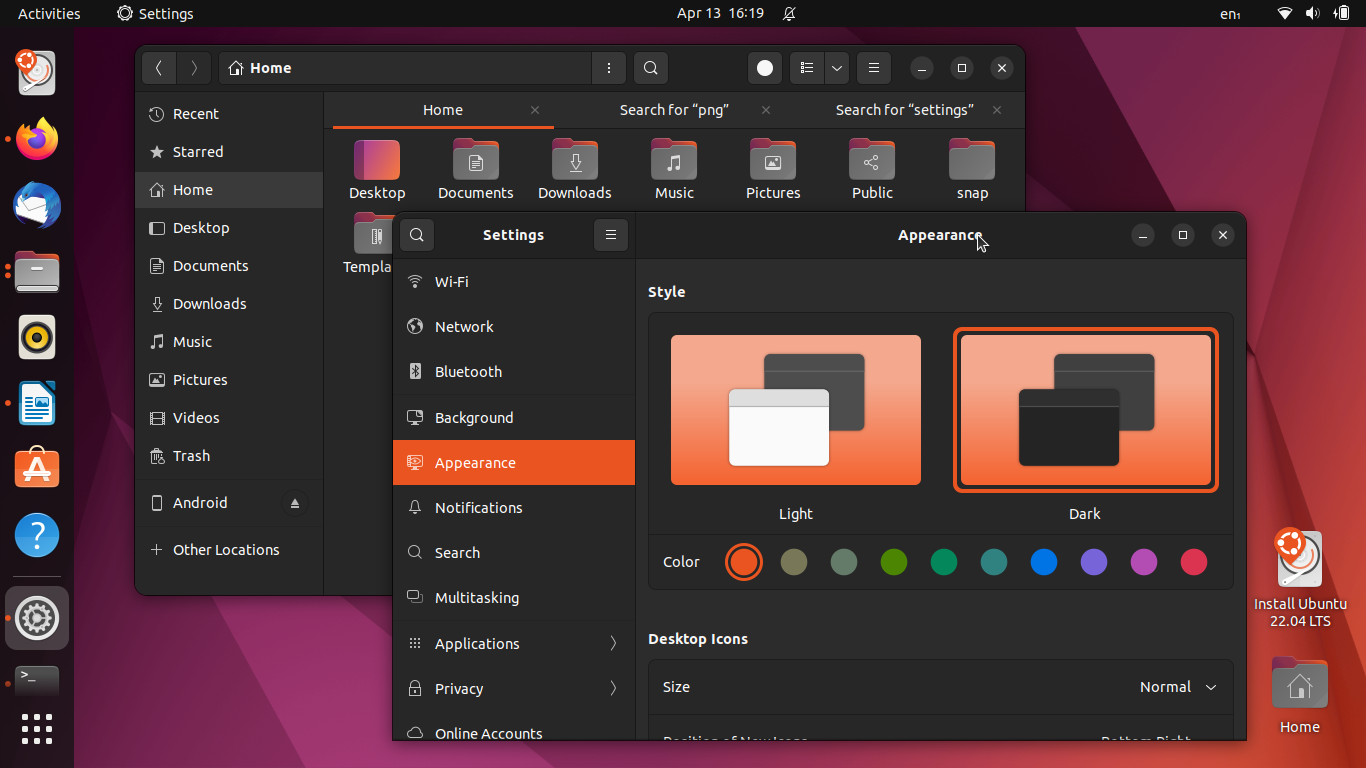
New Dark Theme

Many hard workers will love this: now Ubuntu features dark mode built-in! As an addition, Jammy also includes color themes choices as well as another rich options to its user interface. As reviewer, we're reminded to Deepin OS while first time looking at these.

(Dark mode!)


New Office

Ubuntu Office also known as LibreOffice got freshly updated to version 7.3. Its user interface is nicer, more polished, and it looks so cool with Ubuntu's dark theme.

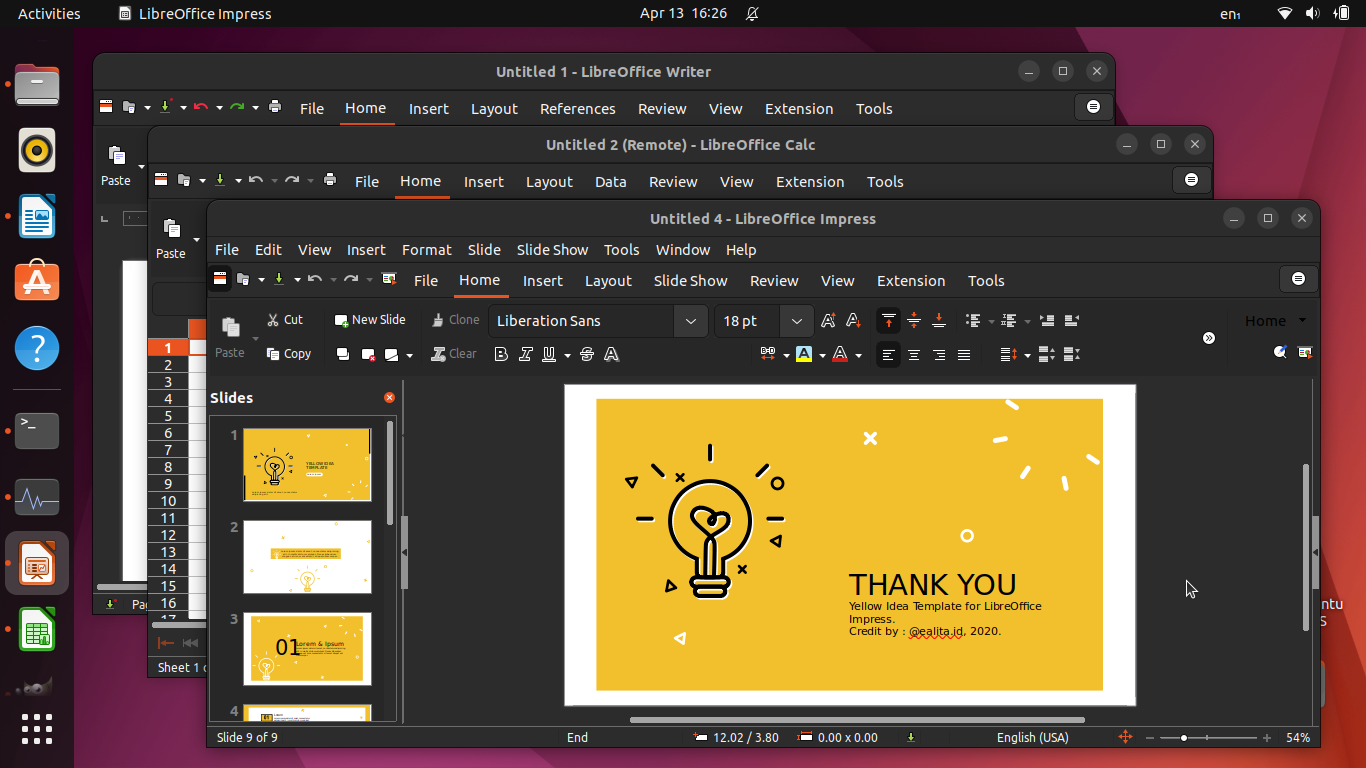
(Writer, Calc, Impress with Notebookbar user interface enabled under Ubuntu dark more look just so matched)

Welcome Back, Gimp!


Lastly on this overview. Yes, Gimp, the Ubuntu Image Editor, is now included again on Jammy Jellyfish after many years since the golden era of GNOME 2. They're now a family again on Jammy. This means end users can edit and retouch their photos right within Ubuntu without needing to add any application.


(Gimp editing one of Jammy wallpapers with several UI adjustments)

Conclusions

Finally, we think this pre-release Ubuntu Jammy is really nice and we'd love to wait for the official release. We'd love to say thanks for Canonical and The Ubuntu Developers for making pre-release as enjoyable as this. We hope Ubuntu 22.04 LTS will release successfully and get worldwide reception. Thanks and see you next time!

This tutorial explains how you can install LibreOffice version 7.0 and later on an Ubuntu computer with several choices of installation methods namely AppImage, DEB, PPA, Snap and Flatpak sorted by difficulty from beginner to advanced. Thanks to these choices, you who have computer with GNU/Linux distros other than Ubuntu can also practice this. Now let's install it.

Subscribe to UbuntuBuzz Telegram Channel to get article updates.

This is our review of Ubuntu 21.10 Impish Indri, the thirtieth release of the world class United Kingdom-based computer operating system made by Canonical. We hope you will find this review amusing and useful. Now, let's dig in!

Subscribe to UbuntuBuzz Telegram Channel to get article updates.

I am happy to see LibreOffice 7.0 shipping as Snap in late August. This means now millions of computer users using Ubuntu and other distros can install LibreOffice Seven from Snap Store in one standard way. If you have installed it before, you can upgrade it right now. For you didn't know, Snap Store is like Play Store in Android and App Store in iOS that is one central way for users to get apps.

Subscribe to UbuntuBuzz Telegram Channel to get article updates.

We're happy LibreOffice 7.0 finally released early August this year. This tutorial explains things for you wanting to get it on Ubuntu 20.04 LTS Focal Fossa. This tutorial offers you standard ways (Deb) as well as alternative ways (AppImage, Flatpak, Snap) you may choose to install it. For merely testing purpose you must start with the AppImage one as it is safest to your system. Finally, congratulations to LibreOffice community and gratitude to all the developers! Happy writing!

Subscribe to UbuntuBuzz Telegram Channel to get article updates directly.

Aside from the official way to install Zotero, which is manually done, there are alternative ways you may choose which are more automatic. They are DEB, Flatpak, and Snap, and I have tested them working on Ubuntu 20.04. In effects, with one of these, you do not need to configure things manually anymore. I suggest you to try any of these ways only if you found the official way unsuccessful. I also included the uninstallation procedures and also how to install the addons below. So let's go!

 (Software Center showing Zotero flatpak-version ready to install and Zotero Standalone snap-version window running beside it showing several Wikipedia pages stored)
Subscribe to UbuntuBuzz Telegram Channel to get article updates directly.

With this article you can turn Ubuntu Focal Fossa into a full professional graphic design system. This enables mass resize pictures by one click. You are given 2D and 3D graphic editing tools for both raster and vector types including animation suite and video production. For photography, I include here darkroom tools and camera management software. Last but not least, I also include a game engine which is able to produce cross platform video games. I listed them here alphabetically with necessary information I think important placed under every name. All applications below are free software. I hope this article will be useful for you. Happy designing!


Subscribe to UbuntuBuzz Telegram Channel to get article updates directly.

Do you know that on Focal Fossa today the software center is switched to Snap instead of the traditional Deb we normally used? Do you notice the difference? If you dislike Snap, you can turn back Ubuntu 20.04 free from Snaps and switch the software center into the original one we used on previous releases.

Subscribe to UbuntuBuzz Telegram Channel to get article updates directly.

The professional free graphic design software Inkscape released version 1.0 few moments ago for all computer operating systems. Now Ubuntu users ask how to install it on Ubuntu and also on other GNU/Linux distros. Fortunately, we have a standard way to install it, and alternatively you can choose other method as you wish including portable and the 32-bit architecture versions. For all users in general I recommend more to try the AppImage version as it is the easiest one. Enjoy!

(Focal Fossa with Inkscape version 1.0)
Subscribe to UbuntuBuzz Telegram Channel to get article updates directly.

LibreOffice is not included by default in elementary OS unlike in other distros. But because you will need it, and many Windows users switching will also need it, I write this tutorial to install and to use it. LibreOffice is free (as in freedom) software, it fulfills rights of all users and community, so it's better than MSO or WPS/Kingsoft and that's why most GNU/Linux distros include it by default and I present it to you here. Enjoy!

Subscribe to UbuntuBuzz Telegram Channel to get article updates directly.

(Debian Buster can run with Snap applications)

When I was writing about LibreOffice 6.2 using D.A.F.S. last month, I realized that using Snap on Debian is a little bit different to Ubuntu. You need more works in the beginning. But once prepared properly, you can enjoy a vast number of up to date additional software for Debian from the Snapcraft repository. This tutorial explains how to prepare Snap on Debian 10 "Buster" LTS from start to finish including disabling it whenever you wish.

Subscribe to UbuntuBuzz Telegram Channel to get article updates directly.

 
(LibreOffice 6.2 is available for both 32-bit and 64-bit PC from official DEB Packages)

This tutorial for Debian 10 explains how to install LibreOffice version 6.2 with 4 alternative solutions which are DEB, AppImage, Flatpak, and Snap (or I call it simply D.A.F.S.) you may choose one. They all do not remove the already installed version. If you want 32-bit version, choose DEB instead. If you want something else, read on, perhaps you will see good things other than AppImage. I hope this helps everybody. Go ahead and get LibreOffice 6.2 on Debian!

Subscribe to UbuntuBuzz Telegram Channel to get article updates directly.

LibreOffice for GNU/Linux nowadays is available in 3 different universal formats, as alternative to the native format (DEB and RPM). This is an advancement that benefits us all greatly. Those 3 are AppImage, Flatpak, and Snap formats, sorted alphabetically. We, GNU/Linux users in many different distros, can obtain latest LibreOffice safely from one same source, by using one among these AFS methods. It is interesting for me to compare LibreOffice 6.2, the latest stable version now, by installation procedures, size, execution time, menubar, theme, access rights, and drag-and-drop.

  (LibreOffice 6.2 running on Ubuntu from 3 different universal executable formats: AppImage, Flatpak, and Snap)
To make this comparison, I use Ubuntu 18.04 64-bit installed in Minimum Mode (without LibreOffice). I hope this comparison gives everybody good sight to both LibreOffice (the program) and AFS (the package formats). Let's see!

Subscribe to UbuntuBuzz Telegram Channel to get article updates directly.