

Showing posts with label unity. Show all posts

This is a list of Free Software Desktop Systems, like KDE and GNOME the desktop environments, and like Kubuntu and Ubuntu the operating systems, and whether one is available as a complete computer to purchase. In this article, you will find useful information and further readings about the user interface choices available on GNU/Linux and BSD computing platforms. This will be used further on UbuntuBuzz.com to accompany every desktop related explanation.
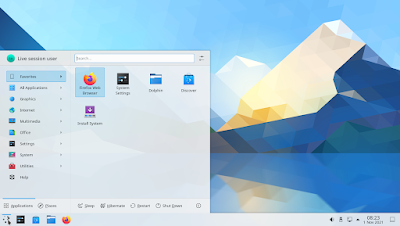
[block]

Subscribe to UbuntuBuzz Telegram Channel to get article updates.

This tutorial explains how to switch Ubuntu 20.10 user interface back to Unity rather than GNOME. This is for computer users who prefer Ubuntu with its innovative Unity appearance that found in version 10.04 LTS and 16.10. Now let's have fun!


Subscribe to UbuntuBuzz Telegram Channel to get article updates.

(Eoan Ermine with CPU-X and Nautilus running nicely)

In this traditional article special for Ubuntu 19.10 Eoan Ermine you will find my suggestions and recommendations in 3 parts, work (including date/time adjustments, productivity tools), non-work (including extensions, podcasts, RSS, codecs), and system maintenance (including CPU-X, repository setup, auto-backup). I also have suggestion for you wanting Global Menu on this Eoan Ermine OS at the end. Adjust it once and use freely everyday. Finally, I hope Ubuntu 19.10 will be your best tool you could imagine to use without worry. Happy working!

Subscribe to UbuntuBuzz Telegram Channel to get article updates directly.

 (Unity7 is still always be with Ubuntu even in this Eoan Ermine release)

This guide will explains installation of Unity desktop environment, the lovely user interface that dismissed since 2017, on Ubuntu 19.10 Eoan Ermine. Thanks to Dale and Khurshid Alam of Unity7 Maintainer Team, even today we can enjoy this Dash and HUD-powered desktop once again in latest Ubuntu version. I hope this article helps people who still love Unity just like myself. Let's go!

Subscribe to UbuntuBuzz Telegram Channel to get article updates directly.

(Dolphin file manager with integrated terminal and right-panel preview on Ubutu 19.04)

Dolphin is file manager from KDE we can compare to Nautilus from GNOME. Dolphin has a lot of features Nautilus doesn't such as internal terminal and split vertical. Not to mention, unlike Nautilus, it supports a lot of third-party plugins like my 2016' Right-Click Batch Converter. In case you wish to change your file manager to Dolphin instead of Nautilus, but without removing any one, here's the way. I wish your life will be easier with this.

Subscribe to UbuntuBuzz Telegram Channel to get article updates directly.

Good news for us that Unity7 desktop environment works very well on Ubuntu 19.04. We can install it right now without any third-party repository. I find that this desktop works pretty faster than the built-in GNOME 3.32 desktop one, at least on my laptop. I include many screenshots to reveal how good Unity7 works on 19.04 below including the HUD, the Login Screen, and the System Tray. I hope this works for you too! Happy working!

(Ubuntu 19.04 "Disco Dingo" with Unity desktop)

Subscribe to UbuntuBuzz Telegram Channel to get article updates directly.


Your 16.04 system can be upgraded directly to 18.04. It's because both are LTS versions. This means you do not have to do a clean install (reinstallation) or reformatting your disk. I have successfully upgraded my 16.04 LTS to 18.04 by keeping the Unity 7 desktop along with the new GNOME 3 by using command lines on Terminal. If you want it, then follow instructions below.

Subscribe to UbuntuBuzz Telegram Channel to get article updates directly.


Do you like customizing Unity desktop using Tweak Tool? Do you like bottom panel (since 16.04 LTS) and custom themes? Good news for you, now we can continue it at Ubuntu Unity Remix 18.04! For you don't know, Unity Tweak Tool is a program to make it easy for you to custom your Unity desktop. This includes changing theme & icon, changing Launcher transparency & position, customizing the menu/search, desktop animations, and many more. This 'Day 3' covers shortly about this Tweak Tool on Unity Remix. Enjoy!

Subscribe to UbuntuBuzz Telegram Channel to get article updates directly.


Do you like Nemo and Caja file managers? Good news for you, you can use them at Ubuntu Unity Remix now. More good news is there are 2 ISOs available (for testing purpose) for both Unity Remix Nemo and Unity Remix Caja editions! Having these two is like continuing the 17.04 but with the feels of Linux Mint 'MATE' and 'Cinnamon' editions. For you who don't know, you will find Nemo or Caja even more useful than Nautilus, because you'll have more features you cannot find at (like normal menu bar, F3, and status bar). This 'Day 2' covers simple overview about both file managers at Ubuntu Unity Remix 18.04. Enjoy!

Subscribe to UbuntuBuzz Telegram Channel to get article updates directly.


Ubuntu Unity Remix 18.04 is already functional even though it's still very new. For you who don't know, Unity Remix is a new Ubuntu distro with Unity 7 desktop created after the official Ubuntu switched to GNOME 3. Unity Remix is based on the effort of Unity 7 Continuation Project by Khurshid Alam and Dale Beaudoin, and it calls for developers & testers right now. Today I, an Ubuntu user who likes Unity Desktop, start a series of article about my days in personal testing Ubuntu Unity Remix. This 'Day 1' covers a short overview about the latest ISO from 27-Dec-2017. This series is (again) inspired by Didier Roche's series at early Artful days. Enjoy!

Subscribe to UbuntuBuzz Telegram Channel to get article updates directly.


I've written similar article before but that was not for Unity. The autohide menu bar in recent Firefox versions can be annoying because user should press Alt to show it. Fortunately, we can change that behavior. In Unity, we need to disable the global menu support in Firefox first and then enable the menu bar manually.

Subscribe to UbuntuBuzz Telegram Channel to get article updates directly.


In the previous Flatpak article, I have not mentioned about how to create a menu icon for an application installed from Flatpak. In this article, I show you how you can access the application from desktop menu once you have Alacarte program. This article demonstrates how to create menu item for LibreOffice, as my previous article introduced it, so you can make another menu for another installed Flatpaks. It is very easy to do as below.
Subscribe to UbuntuBuzz Telegram Channel https://telegram.me/ubuntubuzz to get article updates directly. 


After installing indicator-multiload some days ago, I realized that this small program is very useful for the desktop users in many ways. It provides complete system indicators, not only for networking (real-time up/down speed), but also cpu, mem, and disk transfer real-time statuses. It can be configured to show on the panel only one of them, or combination of some, or even them all. For Unity desktop environment users, indicator-multiload features are arguably needed. So here I show you the examples in configuring indicator-multiload to show the things you need from your system statuses.
Subscribe to UbuntuBuzz Telegram Channel https://telegram.me/ubuntubuzz to get article updates directly.


Unity Tweak Tool is a free software (GNU GPL 3+) by Freyja Team for customizing Ubuntu Unity graphical user interface. We want to give you examples of using the four tweaking categories inside this tool. We want to make it clear for some the most important only or most notable tweak for Unity. We use Unity Tweak Tool 0.0.7 on Ubuntu 16.04 here. We hope this will help you so much.

Sometimes, suspend and lock behavior in Ubuntu or Kubuntu is annoying. For example, you need to enter your password again in every suspend. These behavior are easy to disable by short instructions below.

Alacarte is the easiest tool to edit Ubuntu menu entries. It allows you to show, create a new entry of application, edit the existing entries, change the icon images, or delete any. It is very useful to create Unity Dash menu entry for any application software installed manually. Alacarte is also an alternative to MenuLibre. Here the instructions about how to use it.

Ubuntu gives us easy way to bind a shortcut key with any program. Suppose you want to open Firefox when Win+G are pressed. Or press Win+H to open text editor. This can be achieved by using internal Ubuntu System Settings. You don't need to install any external program.


I've got a new handheld device Sony Ericsson Xperia ST25i with Android operating system recently. This device has internal storage only, it has no external storage. I tried to connect it in my Ubuntu 12.04 but my file manager (Dolphin) could only read and could not write into its storage. And you know, Sony PC Companion program (tool for transferring files into Xperia) is not available for Linux until today. So, I try Ubuntu 15.04 today. You may do it from LiveCD. Out of the box, Ubuntu detects my Xperia easily and I can read or write any files (create folder, copy MP3, copy images, etc.) into my Xperia. You don't need to install anything. By using this, you don't need Sony PC Companion again. I want to share it here.

Unity is default desktop environment for Ubuntu. It has different appearance and user experience compared to another desktop environment. It has few unique features such as HUD and Launcher. It has also a full screen menu. It makes Ubuntu distinguishable among another Linux distro. This guide will help you understand the basics of Unity for daily usage. This guide uses Unity 7.3.2 on Ubuntu 15.04 as a basic and it's applicable to another version too.

Drawers is a simple application which allows us to group many applications launcher together. This application is useful especially for netbook users because they can save screen space by grouping favourite applications launcher into one.