Showing posts with label email. Show all posts

Mozilla Thunderbird is the preinstalled email client application on Ubuntu. Using this application, an Ubuntu user can read emails coming into his or her mail inbox. We will explain it in a step-by-step manner as usual based on our OS version 24.04 "Noble Numbat". Now let's learn and start the exercise!


Subscribe to UbuntuBuzz Telegram Channel to get article updates.

This is the third compilation of our Ubuntu 24.04 Noble Numbat tutorials, which have been published here at The Ubuntu Buzz since 2024. In the last compilation, we talked about useful things like Telegram and Synaptic, among others. In this episode, we will remind you The List of Ubuntu Default Apps, Adjusting Cursor Size, as well as Thunderbird Setup, each with a brief description. We hope this compilation series will be useful to you and everyone. This marks our last article of that year in June. Please enjoy!


(Ubuntu showing the content of an email)


Subscribe to UbuntuBuzz Telegram Channel to get article updates.

This tutorial will help you move address book from one Thunderbird instance to another. This can be accomplished by export and importing it as files. Finally, you might want to to this because you have multiple computers with Ubuntu then you want contacts from the older computer with a lot of addresses (your family, friends, colleagues, community, teams) to be available in the new one. Now let's try it out!


Subscribe to UbuntuBuzz Telegram Channel to get article updates.

This tutorial will help you setup your Gmail email account using Thunderbird on Ubuntu 24.04 "Noble Numbat." Thunderbird from Mozilla is the default email client program on Ubuntu. With this, you can send and receive emails in a dedicated application with offline access, a lot of personal configurations and abilities to backup them easily. We will use the standard IMAP configuration here that is the easiest one. Lastly, we hope this will help your computing with Ubuntu. Now let's start!


1. Run Thunderbird from the Ubuntu button.

2. "Account Setup" should show by now.

If not, click three lines menu > New Account > Existing Email.  

3. Type your three information:

  • Your full name
  • Your email address e.g. yourname@gmail.com
  • Your password

4. Click Continue and let Thunderbird process it for a while.


 5. "Configuration Found" and "Available configurations" messages will show. Let it select "IMAP" and not POP3 and click Done.


6. A new window will show to ask you three things:

  • Re-enter your email e.g. yourname@gmail.com, then
  • Re-enter your password, then
  • Click Allow to allow Thunderbird to access Gmail (this is a security called "OAuth2"), then
  • This window will disappear.


7. "Account Successfully Created" message will show at the top and click Finish to the bottom.


8. Finally, your Gmail inbox will show on the left e.g. yourname@gmail.com > wait for it to read all your emails > now Thunderbird is ready to send and receive emails with your Gmail account.


PS:  we are fans of Ubuntu laptop brands such as KFocus and System76!


****


This article is licensed under CC BY-SA 3.0.

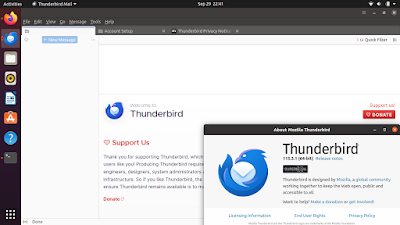
Thunderbird latest versions in 2023 also known as Supernova is the latest generation of the email client program also widely known as Ubuntu's email client. It is different to the previous versions as it brings out major changes to its user interface as well as improvements to the underlying system behind it. This tutorial will help you to install Thunderbird Supernova or upgrade the one installed on your Ubuntu computer. 


Subscribe to UbuntuBuzz Telegram Channel to get article updates.

Continuing email beginner's guide, now we Ubuntu users who have Android can read our emails anywhere anytime in both devices. It's a wonderful experience. On computer we use Thunderbird, while on phone we use K-9, both are free software. This tutorial uses Disroot email account as example, thanks to its gratis IMAP feature. Now, let's go!

(Ubuntu and Android devices conveniently sharing emails)

Subscribe to UbuntuBuzz Telegram Channel to get article updates.

This tutorial explains to you how to have a free email account on the internet. Your email address will look like yourname@disroot.org and people will send you emails using it. This tutorial covers the step by step registration process, how to access your inbox, how to send your first email, and how to integrate your computer with it using a program called email client, all with pictures. This includes the reason why Disroot is chosen here. Now let's go and happy emailing!

 Subscribe to UbuntuBuzz Telegram Channel to get article updates.

This tutorial explains step by step to sync a desktop email client to Mailo Email Account. Mailo is a new email service alternative to Gmail that promises ethical online service with free accounts. The program here is Mozilla Thunderbird that is preloaded on Ubuntu and the select method is IMAP. This way you can read write your emails in multiple devices without worrying about storage space. Enjoy!

Subscribe to UbuntuBuzz Telegram Channel to get article updates.

Here is Mailo a new email service you can register to based in France, Europe. With Mailo your email address will be like malsasa@mailo.com. It promises ethical emails, offers free accounts, and gives imap feature with beautiful yet easy to use interface. What's so special about Mailo is it's friendly to everyone using Free Libre Open Source Software in general and everyone seeking privacy alternative to Gmail in particular. It is featured in Free Software Foundation's Webmail Systems page. For you who are looking for secure email other than Disroot or Tutanota, Mailo is very promising. By this article I wish our readers try and give us comments about it. Enjoy!


This article is licensed under CC BY-SA 3.0.

To dear readers, in the emergency of COVID-19 widespread disease, we all needed to keep staying at home but in fact we still need to communicate with people. For that purpose, I listed here several free & popular communication tools everybody can use on Ubuntu with short guidances in using them. They are email & mailing list, IRC webchat, Telegram, and Jitsi Meet. They are all gratis and quick to use and I myself using them for online teaching and reaching people out there. Stay safe and be healthy!

 
(Back to basic with email group to communicate online)

Subscribe to UbuntuBuzz Telegram Channel to get article updates directly.


I've posted a tutorial about Thunderbird+Enigmail earlier this month. But for Icedove users, although this mail client is based on Thunderbird, things may be not easy, so I write this tutorial. This explains how to install Enigmail into Icedove especially for you using Trisquel, Debian, PureOS, or Parabola where you have Icedove instead of Thunderbird there. This including how to import your personal GPG key pair. Enjoy!

Subscribe to UbuntuBuzz Telegram Channel to get article updates directly.


In your encrypted emailing life, your pair of public and private keys can be moved to another computer in case you have one email account in multiple devices. This also means backup and restore your keys. This way, you don't have to create new pair in every computer (or even in every installed distro). This simple tutorial explains how to import/export keys in Thunderbird Mail Client with Enigmail add-on as continuation to Email Encryption Made Easy tutorial. Enjoy!

Subscribe to UbuntuBuzz Telegram Channel to get article updates directly.


This quick tutorial explains in step by step how to configure Thunderbird so you can encrypt emails to your friend and read encrypted email destined to you. This all done automatically and easily by using Enigmail add-on. You will use your privacy-aware BitMessage Mail account (with IMAP/POP feature) from the previous tutorial. The underlying encrypt/decrypt processes are all done by GnuPG program already installed on Ubuntu. So you can now practice them all quickly and easily. Make encrypting email easier with this and good luck!

Subscribe to UbuntuBuzz Telegram Channel to get article updates directly.


This tutorial explains how to create free (no cost) email account at BitMessage E-mail and setup it in mail client with IMAP mode on Ubuntu. The mail client used here is Thunderbird, which is only an example as you can apply same steps to Icedove and other mail clients. You will get @bitmessage.ch mail address, which can send/receive emails to regular emails such as @gmail.com and @yahoo.com, and with ability to delete your account permanently. Happy emailing!

The latest version of default Ubuntu email client application Mozilla Thunderbird now lands on Ubuntu repository. It means that you will get the latest version when installing Thunderbird or running update on your system. So what's new in this release?

  • YouSendIt no longer expires Filelinks after 1 week
  • The prompt given when a password had changed sometimes referred to a network error rather than a change of password
  • Some Linux users may have been unable to start Thunderbird from outside the installation directory
  • Miscellaneous other stability and display updates

ZMail is open source fake email software that allows you to send fake emails, using Zmail you can send email from anybody, to anybody!

If you need to send a quick email to someone without opening your regular email program, test an email server, or perhaps play some pranks on your friends, ZMail is for you.