Showing posts with label PDF. Show all posts

This ebook is Xubuntu Documentation published in 2022, free to download and share, a complete user guide of Xubuntu GNU/Linux operating system with Xfce desktop environment for computer and laptop. It mainly introduces and explains about Xubuntu, the system, and Xfce, the graphical user interface, without limiting it to a specific OS version. Even if you don't use Xubuntu, but only use Xfce, this book is a worthy read. We encourage you to print out and share this excellent book as many as possible to people you love if you can. Lastly, we say thank you and greatest appreciation to The Xubuntu Team for publishing this book. Enjoy!


  • Title: Xubuntu Documentation
  • Description: A complete guide book of Xubuntu GNU/Linux operating system with Xfce desktop environment. This book is released on 2022 and not limited to version 22.04 LTS only. It explains basic introduction of Xubuntu and Xfce, how to use it, how to configure and customize it, what applications are available and how to install and remove and update them, how to manage, maintain and troubleshoot it up until the end. It is available in two paper size choices A4 and USLetter.
  • Authors: The Xubuntu Team
  • Publication date: 2022
  • Pages: 123 and 130
  • Price: Free to download
  • License: CC BY-SA 4.0 (free to read, copy, edit, mix, share and sell)
  • First chapter: Introducing about Xubuntu, the name, the philosophy, releases and version numbers, editions and what made up Xubuntu from Free/Open Source Software, GNU, Linux, Xfce, Debian and Ubuntu.
  • Second chapter: Explaining installation of Xubuntu to computer and laptop starting from downloading the ISO, making backup, making the bootable medium, booting and the actual steps to install.
  • Third chapter: Explaining everything about Xubuntu Desktop, the panel, the icons, the menu, the workspace and how to use them.
  • 4th chapter: Explaining default applications like Atril, Engrampa, Thunar and LibreOffice and the others.
  • 5th chapter: Explaining software management including how to install, remove, update individual applications as well as upgrade the system.
  • 6th chapter: Explaining settings and customization including adjusting panel, menu, desktop, wallpaper and themes. It also includes personalization of Xubuntu to mimic user interface of Windows and MacOS.
  • 7th - 11th chapters: Explaining settings from hardware, networking, printing and scanning, user management and hardware devices (driver and disk partitions). 
  • 12th chapter: Explaining file management and filesystem of Xubuntu.
  • 13th chapter: Explaining multimedia applications use for playing music, movies and reading or burning CDs/DVDs.
  • 14th chapter: Explaining migration from Microsoft Windows with dictionary, WINE, and networking.
  • 15th chapter: Explaining troubleshooting mainly about networking.
  • 16th chapter: Explaining how to upgrade Xubuntu.
  • 17th chapter: Appendix containing application table and copyright and licensing information.


[DOWNLOAD PDF A4 3MB]


[DOWNLOAD PDF US-Letter 3MB


Note: with respect to The Xubuntu Project, this book is built from source and hosted on Internet Archive by us (Ade Malsasa Akbar) because the official website currently does not have the PDF files and we have filed a bug report with ongoing discussion at Launchpad. When the official PDF files become available, we will edit this to point to it instead. 


****


References 

Xubuntu Documentation List (Web)

The Official Xubuntu Documentation (Web)

Xubuntu Documentation Source Code (GitHub)

Xubuntu Documentation Package (Launchpad)


This article is licensed under CC BY-SA 3.0.

This is the official Kubuntu 20.04 GNU/Linux user manual book in two formats PDF and Ebook free to download and share. This book mainly explains about Kubuntu, for Kubuntu users, and also KDE Plasma Desktop, for everyone who want to learn about it. You can read our short book review below before downloading. We encourage you to print out and share this valuable book as many as possible to people you care about if you can. Lastly, we say thank you and greatest appreciation to The Kubuntu Team for publishing this book. Enjoy!


  • Title: Kubuntu Manual Documentation 
  • Description: An official user guide book of Kubuntu 20.04 LTS "Focal Fossa" with KDE Plasma Desktop explaining from basics of what is Kubuntu, system installation, how to use the desktop and applications, networking, desktop customizations, software package management, PPA up to how one can get involved and contribute to the project together.
  • Authors: The Kubuntu Team
  • Publication date: 1 February 2022
  • Pages: 59
  • Price: Free to download
  • License: CC BY-SA 4.0 (free to read, copy, edit, mix, share and sell)
  • First chapter: Explaining the Kubuntu philosophy, free software and open source, Linux kernel and KDE.
  • Second chapter: Explaining step by step of Kubuntu installation to computer and laptop.
  • Third chapter: Explaining basic use of Kubuntu with the KDE Plasma Desktop mainly about Launchers and networking.
  • 4th chapter: Explaining customizations of Kubuntu to suite the user needs mainly about KDE Plasma Desktop stuffs like Themes, Plasmoids, Panel, Activities and briefly talking about hardware driver.
  • 5th chapter: Explaining Repositories, the source where Kubuntu users take their software packages from, by talking about managing them as well as personal package archives (PPAs).
  • 6th chapter: Explaining Software Management and Software Introduction, talking about how to install applications via Discover, and introducing a lot of Free/Libre Open Source Software provided by Kubuntu.
  • 7th, 8th, 9th and 10th chapter: Explaining Contribution, Support, and Software Packaging guides, so Kubuntu users can proudly join and get involved in the Kubuntu development itself, and then ended with Appendix.


[ DOWNLOAD PDF 14MB ]


[ DOWNLOAD EPUB 11MB ]


*) Note: to read PDF, we recommend free/libre software Sumatra (Windows) and Okular (Kubuntu). To read EPUB, we recommend Calibre (all platforms).


****


References 

Kubuntu Help and Support (the source of this ebook)

Kubuntu Manual (the actual download server) 


This article is licensed under CC BY-SA 3.0.

This tutorial will help you create PDF documents on Ubuntu computer with default applications. You can do so using LibreOffice (full set consisted of Writer, Calc and Impress) and Firefox. You can do this quickly without adding any new application. Now let's try it out! 


Subscribe to UbuntuBuzz Telegram Channel to get article updates.

This tutorial will help you place copies of fonts inside document with LibreOffice. This helps digital document compatibility and interoperability with other software users especially when they use different systems. This can help solve missing fonts issue which often hinders people adopting free software and GNU/Linux. Now let's try it out!


Subscribe to UbuntuBuzz Telegram Channel to get article updates.

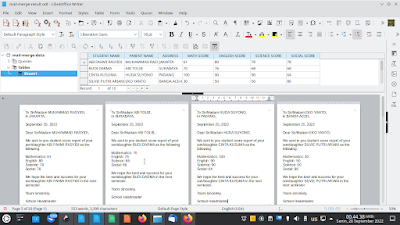
This tutorial will help you to create mail merge with LibreOffice explained step by step with pictures and examples. Mail merge is a method of making stuffs consisted of multiple personalized copies like official letters, invitations, envelops, identity cards, student score reports etc. using word processor, spreadsheet and database. Finally, in this exercise we will make school letters for students' parents as an example so you can practice and then adapt it to your own needs. Let's study now!


Subscribe to UbuntuBuzz Telegram Channel to get article updates.


Continuing Writer #1 Master Method, now we are trying a different method to merge multiple documents with menubar Insert. This method is done one by one so it is suitable for an author who prefers everything done manually. You will learn by examples you can download freely once again and final result is a ODT with 300 pages long you can export easily into a PDF. Let's go and happy learning!

Subscribe to UbuntuBuzz Telegram Channel to get article updates directly.


Do you know that LibreOffice has Master Document feature? This feature allows you to join multiple documents, rearrange them, and then save them as one joined document. We can use this feature to quickly and easily merge ODT files into one. I will give you example by joining 10 transcript documents into single ODT or PDF file with a total of 600 pages with 90 pictures inside. Don't worry as you can download that examples below. Let's learn!

Subscribe to UbuntuBuzz Telegram Channel to get article updates directly.

 (GNOME User Guide viewed in Evince PDF Reader)

GNOME official provides guide book in HTML only and not in PDF. But if you search further, you can find that openSUSE provides free 200-pages GNOME guide book in PDF. It is titled GNOME User Guide - openSUSE Leap 15.0, however, seeing how general the book is, everybody could read it even though they use instead Ubuntu or another GNU/Linux distro. It covers introduction to GNOME 3 user interface, shortcut keys, file management, system settings, network & printer sharing, image editing (GIMP), CD burning (Brasero), multimedia playback (Totem), and many more. You can download, read, print out, and redistribute this book to learn by yourself and you friends! It's also a good idea to bring printed copies to school to train students and teachers. The ebook is licensed under free license (GNU FDL) and available gratis. Go download it and happy reading!

Subscribe to UbuntuBuzz Telegram Channel to get article updates directly.

Continuing the first part: Okular PDF Reader has read out loud (text to speech) feature but it needs configuration to make it works. You might find that there are very limited number of documentations available on the net about this case and if you find them you will know how complicated they are. So in this article I make it simple for you and I guarantee it's very easy to do this on Ubuntu (including Kubuntu and Neon). Ah, yeah, I include here a demonstration video you can play (don't worry it's hosted on PeerTube server, not YouTube). You will start with several basic knowledge below, then install everything needed, and then do the job. I hope this may help you to help anyone with disabilities or impairments to use GNU/Linux. Enjoy!

Subscribe to UbuntuBuzz Telegram Channel to get article updates directly.

 
This is a compilation of download information of user guide books of Ubuntu and the 5 Official Flavors (Kubuntu, Xubuntu, Lubuntu, Ubuntu MATE, and Ubuntu Studio). You can find either complete user guides (even for server edition), installation guide, or tutorials compilation; either in PDF or HTML format; plus where to purchase two official ebooks of Ubuntu MATE. On the end of this tutorial, I included how to download the HTML-only documentation so you can read it completely offline. I hope you will find all of books useful and you can print them out yourself. Get the books, print them, share with your friends, read and learn Ubuntu All Flavors.

Subscribe to UbuntuBuzz Telegram Channel to get article updates directly.


I would like to share ebooks that are DRM-free, no cost (gratis), freely licensed, and readable for you Ubuntu users. I guarantee you can read ebooks from these resources immediately on Ubuntu with default reader (or Calibre) without the nonfree, DRM-based Adobe Digital Edition or such program. The number of ebooks reaches more than 2.000.000 and are provided by many online websites which have been recommended by Defective By Design campaign. The ebooks usually available in PDF, EPUB, MOBI, and DVJU formats. You can use built-in ebook readers included in your system: Okular (Kubuntu), Evince (Ubuntu), Atril (Ubuntu MATE); to read them or simply install Calibre to read them. Finally, happy reading!

Subscribe to UbuntuBuzz Telegram Channel to get article updates directly.


We maintain at least 12 articles in document format conversion topic between Microsoft Office, LibreOffice, and PDF. We divide the tutorials into 4 division with 3 tutorials for each division. Every tutorial is done with LibreOffice command line and in the multiple conversion mode, in GNU/Linux. We create these series of tutorial to ease every migration from Microsoft Office to LibreOffice. We included coversion to PDF here just to ease everyone from the incompatible formats, because PDF is better than OOXML if you want to read it in every computer. We hope this series help you a lot.

This article shows how to edit reference data (e.g. URL, title, date, etc.) for PDF document with Zotero, so you can import the citation into LibreOffice and create bibliography from it. This article consists of two main parts, editing reference and inserting reference into LibreOffice document. This article assumes you have installed Zotero in Firefox or its Stand Alone version.

This guide collects instructions about extracting and saving images from PDF file. This is possible by using pdfimages command line utility. pdfimages is built-in in Ubuntu along with poppler-utils package. pdfimages can save images in .ppm, .pbm, and .jpg formats.

This guide shows instuctions about converting PDF into TXT with pdftotext utility. pdftotext is already built-in in Ubuntu along with poppler-utils package. Thanks to Poppler Project and Glyph & Cog for providing this utility.

This guide shows instruction about joining some PDF files into one with pdfunite utility. It is built-in in Ubuntu along with poppler-utils package. Thanks to Poppler Project and Glyph & Cog.

This tutorial contains instructions about converting PDF into bitmap image (jpeg & png). The instructions consist of pdftoppm command lines. Fortunately, pdftoppm command (packaged in poppler-utils package) is already included built-in since Ubuntu 12.04 and above. Thanks to Poppler Project (http://poppler.freedesktop.org) and Glyph & Cog (http://www.glyphandcog.com) for providing this pdftoppm utility.

This article contains instructions to split a PDF file to many PDF file with pdfseparate utility. pdfseparate is a part of poppler-utils package, and it is available built-in in Ubuntu. Thanks to Poppler Project and Glyph & Cog for providing this utility.

There are some important options when exporting PDF in Scribus. There are also many professional options I don't know (e.g. I don't have any professional printing purpose). But for my design hobby, I get a good quality PDF when using these. I apply these for my digital magazine. I hope these will useful for you too.

Are you looking for multitab PDF viewer in Linux? Probably you want an alternative for Foxit Reader. Then use Qpdfview. It supports multitabbing. Also, it supports zooming, continuous view, fullscreen, properties viewing, sidebar, and so on. Fortunately, Qpdfview is available on Ubuntu official repository and many other distro repositories. Personally, I've used Qpdfview on my KDE as default PDF viewer because I always open many PDF files at once. I hope Qpdfview is useful for you too.