Showing posts with label Installation. Show all posts

Here you find summary all our works on Ubuntu 20.04 from Download Links to Installation Guide from Reviews to Apps Recommendations plus Beginner's Guide in one place. For us facing pandemic right now, there is even Corona Kit to help remote works with only Free Software. This summary also covers six Official Flavors from Kubuntu to Ubuntu Budgie. For everyone who wants to know Focal Fossa this summary is really for you. Enjoy!

 Subscribe to UbuntuBuzz Telegram Channel to get article updates.

DreadOut is an Indonesian indie horror game which brings a supernatural adventure to its player. A group of high school students stray from their vacation trip, they discover an old deserted town. They realize that there is something weird as they are entering the town. Linda as the main character in this game feels a mystical power within herself. This mystical or spiritual power might can save her and her friends from unknown evil in the town.

When the first time i come to Ubuntubuzz, i said that i will write posts about networking in Ubuntu. Especially about how to adminisiter a Server with Ubuntu. Yeah, start from the installation of Ubuntu Server to installation all of services that are needed by a Server. I hope you'll like it and useful for you as well. :)

In this first chance, i will guide you about how to install Ubuntu Server 12.04 LTS in your PC. Why i still use 12.04 version? It is because the 12.04 version, is a Long Term Support. As you know, LTS version is designed for Server use, because of its realibility and its long support. So, if you consider to use Ubuntu as your Server, use the newest LTS version which now is Ubuntu 12.04 LTS.

Okay, now lets begin the main part.

1. The first, prepare your installation CD. If you dont have it, you can download the image file from the Official Ubuntu website. After you finished, burn it to a blank disc with Brasero or Nero or another burning application you like.

2. Now, you already have the installation CD. But, you still have to do something before starting the installation. Go to your PC BIOS setting with pressing F1, F12, or Delete button and go to the boot settings. Set the First Boot to CD Rom as you can see at the picture below.
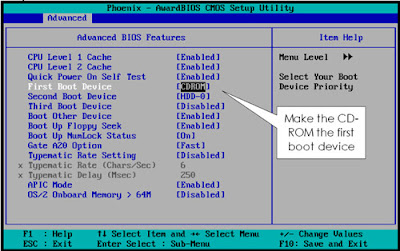

3. After that, put the installation CD to your CD/DVD Rom. If your PC success to boot from CD/DVD Rom, you'll see this picture. Choose Install Ubuntu Server.


4. In this Language Selection Part, just select English.


5. Next, you'll need to select your Country Location. If you live in Indonesia (same like me :D), choose other > Asia > Indonesia and press Enter.


6. After that you will be asked to choose your Country Locales base. Almost all of Indonesian PC usually use United States.


7. If appear Picture like below, just choose No. Because we will choose the Keyboard Layout manually.


8. Like Locales setting, almost all of Indonesian PC usually use English US as default keyboard layout. Choose English (US) > English US.


9. Then, this is the Network Configuration part. I use two Network Interface Card, so it will show two configuration like this. Just select one of them, eth0 or eth1.


If you ask me about the IP Address configuration, i cannot answer it. Because it's depend on your own ISP configuration. Either Dynamic IP or Static IP. In this case, i use Dynamic configuration so when Ubuntu configuring the network with DHCP, it will be succeeded like this.


But, if your IP configuration is static, in this part you will fail. Dont worry, just select Configure Network Manually and fill in the configuration depend on your ISP configuration that they gave to you.


Example :


10. The next part is hostname configuration. Hostname is name of your computer. Just fill it with one name that you want.
Note: Dont use space okay!


11. Then, you need to input your domain name too. Remember, this domain just can be used in local network only. So don't use top level domain which used in the internet like .com, .org, .net or another else. Because i'm afraid your local domain will conflicting with internet domain. Use top level domain that doesn't exist in internet like .handsome, .beautiful, etc. Domain that i use in this post is belajar.cilsy.


12. Now, you are going to the Setup Username and Password part. The first, you are asked to input your Full Name. So, fill it.


Input your username too.


And input your new user password twice. One for the new password itself, and one for confirmation. Remember, do not ever use weak password! Always use words, number, capital words, and special character combination.


13. Choose No, if it ask you to encrypt your home directory.


14. After that, you will go to the Setup Clock part. If you're connected to the internet, Ubuntu will configuring your clock automatically like the image shown below. If it is correct, select Yes.


15. Partition part is the most difficult part of installation Ubuntu Server 12.04 LTS i think. Because for almost all beginner user think that Linux partition is definitely different with Windows partition. So be carefull guys! I really recommend you to backup all of your important data before you continue to this step. "Sounds this step is so hard and dangerous, so what i have to do to avoid the worst risk?". Don't worry, if you dont know how to make the partition, just choose Guided - use entire disk. The System will make the best partition for your hard disk automatically.


But if you thing that you can make your own partition, i recommend you to select Manual.


After that, select your Hard Disk.


Finally select Yes to write your changes to the disk.


16. When the process running, suddenly you see a form that ask you to fill a HTTP Proxy address. Just leave it blank then select Continue.


17. For the security reasons, in this part i recommend you to choose Install Security Updates Automaticcally because it will make your Ubuntu more safely.


18. Now, here is the Software Selection part. Ubuntu ask you to choose what softwares you want to install. Dont check anything and just leave it as default. Because with let your Server be a really fresh system is a good thing. You can install any software and service which you want after the installation process finished.


19. Finally, this is the last part. Choose Yes in this Installation GRUB Boot Loader part.


20. Now your installation is finished. Select Continue to reboot to your new Ubuntu system.


That's it.

Hope this post useful for you :)

The full-featured office suite which becomes default office suite for Ubuntu, LibreOffice has released the latest major version, LibreOffice 4.0. LibreOffice 4.0 comes with many important changes and improvements, such as:

LibreOffice 3.6 has been released few days ago, but unfortunately it doesn't come to Ubuntu repository yet. Alternatively, if you can't wait for Ubuntu repository to update LibreOffice, you can use the official LibreOffice PPA to install the latest version.

Java-based application is very popular nowadays, it's because Java-based applications can run on any operating system e.g. Windows, Linux, and Mac with JRE (Java Runtime Environment) installed. Recently, I wrote some Java-based applications in Ubuntu Buzz! Most of those applications work well with OpenJDK/JRE. But, if you want to use Oracle Java instead of the "open" solution, you can do it easily. For your information, Oracle Java is no longer available on Ubuntu repositories because some changes in Java license. Fortunately, there is a script which can automatically download and install the latest Oracle Java on Ubuntu.

Ubuntu 12.04 (Precise Pangolin) is ready for release in just few hours. Not to forget that this is an LTS release with the longest support cycle offered by Canonical till now.

After you are done with the installation, there would likely be a huge list of things you need to do to make your system up and running. Here is a list of the most important things  that you need to do after a successful installation.


Few days ago we had covered the release story of the latest Linux kernel in town that is version 3.3, which comes with lots of goody goody features like merging of Android code etc.

So if you are a developer and want to test whats new in the latest offering or a brave and adventures enthusiast who always prefer to walk over the bleeding edge, here is a short guide to upgrading your kernel to version 3.3 without complex compiling procedures.

This guide will help you install Linux 3.3 Kernel under Ubuntu 12.04/11.10 or older.

Marlin is a lightweight, sleek & fast GTK3 file manager for elementary OS. Marlin is designed with a focus on speed, simplicity, ease of use.

The interface is minimal as compared to Nautilus. Yet it does its job pretty well. The interface is divided into a left panel that provides fast access to bookmarks and common places, the right panel shows the preview for files and the middle window offers the file browsing.

Gone are the days of press to start pop-up or pop-down menu launchers for operating systems and desktop environments. Ubuntu have its very own Unity launcher with various lenses, Gnome 3 have Activities hot corner, Apple introduced Launchpad in OSX Lion to go with the trend and even Microsoft is planning to ditch the legendary "Start" menu in Windows 8. But in KDE we still have the same boring Press to start pop-up menu launcher.

VirtualBox is a virtualization application that can help you run any x86 and AMD64/Intel64 compatible operating system on host machine. VirtualBox runs on Windows, Linux, Macintosh, and Solaris hosts and supports a lot of guest operating systems such as (not limited to) Windows NT 4.0, 2000, XP, Server 2003, Vista, Windows 7, DOS/Windows 3.x, Linux (2.4 and 2.6), Solaris and OpenSolaris, OS/2, and OpenBSD. VirtualBox 4.1.4 is now available for Ubuntu 11.10 Oneiric Ocelot.


Obnam is simply backup application that closed to rsync which can  Backups data then store into local hard disks or online storage through the SSH SFTP protocol, Obnam make simple procedure backup and didn't need any supporting application unless SSH. Till now Obnam have come to version 0.23 and ready to install in Ubuntu via PPA, even though we call `functionality is does not replace Deja-dup`, Obnam is such interesting application to Developer for trying.

Obnam 0.23  Backup features
here'resome features that will you get in Obnam :

  • Snapshot backups. Obnam is complated with snapshot features, you don't need to worry about full versus incremental backups, or rotate real or virtual tapes.
  • Data de-duplication, across files, and backup generations. If the backup repository already contains a particular chunk of data, it will be re-used, even if it was in another file in an older backup generation. This way, you don't need to worry about moving around large files, or modifying them.
  • Safe and secure backup using GnuPG.
  • Push or pull operation, depending on what you need. You can run Obnam on the client, and push backups to the server, or on the server, and pull from the client over SFTP (just like Rsync).
And in this released (Obnam 0.23) there are some visible changes are :
  • restore now complate with progress bar.
  • fsck now has more useful progress reporting, and does more checking, including the integrity of the contents of file content.
  • fsck now also checks the integrity of the B-trees in the repository, so that it is not necessary to run fsck-larch manually anymore. This works remotely as well, whereas fsck-larch only worked on B-trees on the local filesystem.
  • force-lock now gives a warning if the client does not exist in the repository.
  • Subcommands for encryption now give a warning if encryption key is not given.
  • The --fsck-fix option will now instruct obnam backup fsck to try to fix problems found. For this release, it only means fixing B-tree missing node problems, but more will follow.
  • SFTP protocol use has been optimized, which should result in some more speed. This also highlights the need to change obnam backup so it can do uploads in the background.

Note : Use only if you have Legal Copy of Microsoft Office 2007

Microsoft Office 2007 is such a popular word processing application although until now it'a still not available yet for ubuntu or other Linux distro. When you are using Ubuntu and you do not feel familiar with LibreOffice it's good try to install Microsoft Office 2007 in your Ubuntu (*if you have the legal copy) I think it is a wise choice than you are sacrificing your time.

To be able to install Microsoft Office 2007 in Ubuntu we need such supporting application and library  so that Office 2007 can be work properly, some of these applications are Wine 1.3, Winetrick, msttcorefonts-offline library (to make clear type and smooth font face) and some required library.  Here are step by step to install Microsoft Office 2007 in Ubuntu 11.10 :

What is PlexyDesk
PlexyDesk s such Desktop widget which run on various desktop envoroment (KDE,GNOME, Unity, Mac OS and Windows) powered by Qt/QML, through Playdesk you can easily changging wallpapers by dragging and dropping any image you like from your file manager. Here some features that you can get in Playdesk :
  • Small selection of widgets (clock, photo frame, file browser)
  • Some widgets have extra themes – just right-click to switch between them
  • Ability to change desktop wallpaper by dragging and dropping an image on to the desktop
  • 3D support
  • Themepack support for changing themes (QML)
  • Drag and drop adding of new widgets

In several case Broadcom 43xx Wireless Card often getting error in Ubuntu (since ubuntu 8.04), some of them `recognize` the device but the wireless didn't work moreover the system can't detect any wireless installed (no wireless found). Regarding to that problem many forum have been discussed, here are summary of step by step how to fix Broadcom 43xx Wireless Card Error in Ubuntu.

Make sure Broadcom Wireless card installed properly
First step, make it sure that some of Broadcom Wireless card has been installed properly and detect by kernel, do following command on the terminal :

lspci | grep Broadcom\ Corporation
If give following output :
0000:02:0d.0 Network controller: Broadcom Corporation BCM4306 802.11b/g Wireless LAN Controller (rev 03)

Finaly Blender 2.59 released, This is mostly a bug fix release with 140 fixes since 2.58a. Additions include improved keymap editing, 3D mouse support, some new addons and Node UI improvements. What's cool stuff inside ?, find in here
3D Mouse support "NDOF"
Blender is now built with support for 3D Connexion devices, for more natural control during view navigation and fly mode.

Custom Keymaps
User edited keymaps now no longer override the builtin keymaps entirely, but rather save only the difference and reapply those changes. This means they can stay better in sync when the builtin keymaps change.

Ivy Generator (Addon)
This tools adds the ability to "grow" curves over an existing mesh with the option of adding leaves and adjusting many parameters for the final result.
Grease Scatter (Addon)
Grease scatter was used for sintel to place objects around the ally, using grease pencil lines as a guide as to where to scatter objects
.

And Many More
Find out what coll stuff else, visit Blender 2.59 Complate changelog, here.

Swap space in Linux is used when the amount of physical memory (RAM) is full. If the system needs more memory resources and the RAM is full, inactive pages in memory are moved to the swap space.

Swap should equal 2x physical RAM for up to 2 GB of physical RAM, and then an additional 1x physical RAM for any amount above 2 GB, but never less than 32 MB. That's formula which usually used but in practice you do not need to allocated a Swap Space when you have RAM more than 5 GB unless you run a bloody busy server, don't waste your HDD space dude :D

As we have written previously on KDE 4.7.0 Release News and Feature, on this post we will disccuss how to upgrade / install it on Kubuntu as we have promised.

Just like before, we use kubuntu official PPA channel to get the latest update of KDE 4.7.0, use following ways to upgrade Kubuntu to KDE 4.7.0

  • sudo apt-add-repository ppa:kubuntu-ppa/backports
  • sudo apt-get update
  • sudo apt-get upgrade

This articel is tell us how to make iOS4 (ipod/iphone operating system) work with Ubuntu through the Rhythmbox, This how to has been tested using a ipod touch 3rd gen running iOS 4.0 Dont be put off by the size of the how to. It may seem long because I have outlined every step to make it as easy for everyone as possible. Mention some notes bellow before you do the action.

Note :
  • Make sure you are connected to the internet
  • Don't have any ipods/iphones connected while doing this how to.
  • Best to bookmark this page as you will need to restart your computer during the how to.

Here are step by step how to make your ipod and Iphone works with Ubuntu
  • Open up the Synaptic Package Manager (System > Administration >  Synaptic Package Manager)
  • Go to the Repositories (Under Settings)
  • Add this source -   ppa:pmcenery/ppa 
  • Click Close and then click the 'Reload' button at the top left of the Synaptic Package Manager
  • After it's finished reloading search for - libimobiledevice1
  • You will see two package in the list, install both of them
  • Now click the 'mark all upgrades' button and click 'mark' when the popup appears then click the 'Apply' button of the Synaptic Package Manager. Here some library need to upgrade : gvfs, gvfs-backends, gvfs-bin, gvfs-fuse, libgpod-common, libgpod4, libplist1, libusbmuxd1, usbmuxd.
  • The software packages will then be downloaded and installed.
  • Restart your computer and login back in.

The Ubuntu Software Center welcomes it’s newest title, SpaceChem! A top rated, highly acclaimed game is now ready for you to purchase and play through the Ubuntu Software Center by price $15.

SpaceChem is such us puzzle game that obscenely addictive, this game is about building machines and fighting monsters in the name of science. Take on the role of a Reactor Engineer working for SpaceChem, the leading chemical synthesizer for frontier colonies. Construct elaborate factories to transform raw materials into valuable chemical products! Streamline your designs to meet production quotas and survive encounters with the sinister threats that plague SpaceChem.

See the trailer bellow :