Showing posts with label usb bootable. Show all posts

This tutorial will explain how you can create USB bootable installer to install Ubuntu operating system version 22.04 and later to computers. This works for all computer users who use Windows, MacOS and GNU/Linux. We offer various options here so you can pick one you like the most between using Rufus, Etcher and Ubuntu Startup Disk Creator programs. We hope this helps you a lot. Happy computing!

Subscribe to UbuntuBuzz Telegram Channel to get article updates.

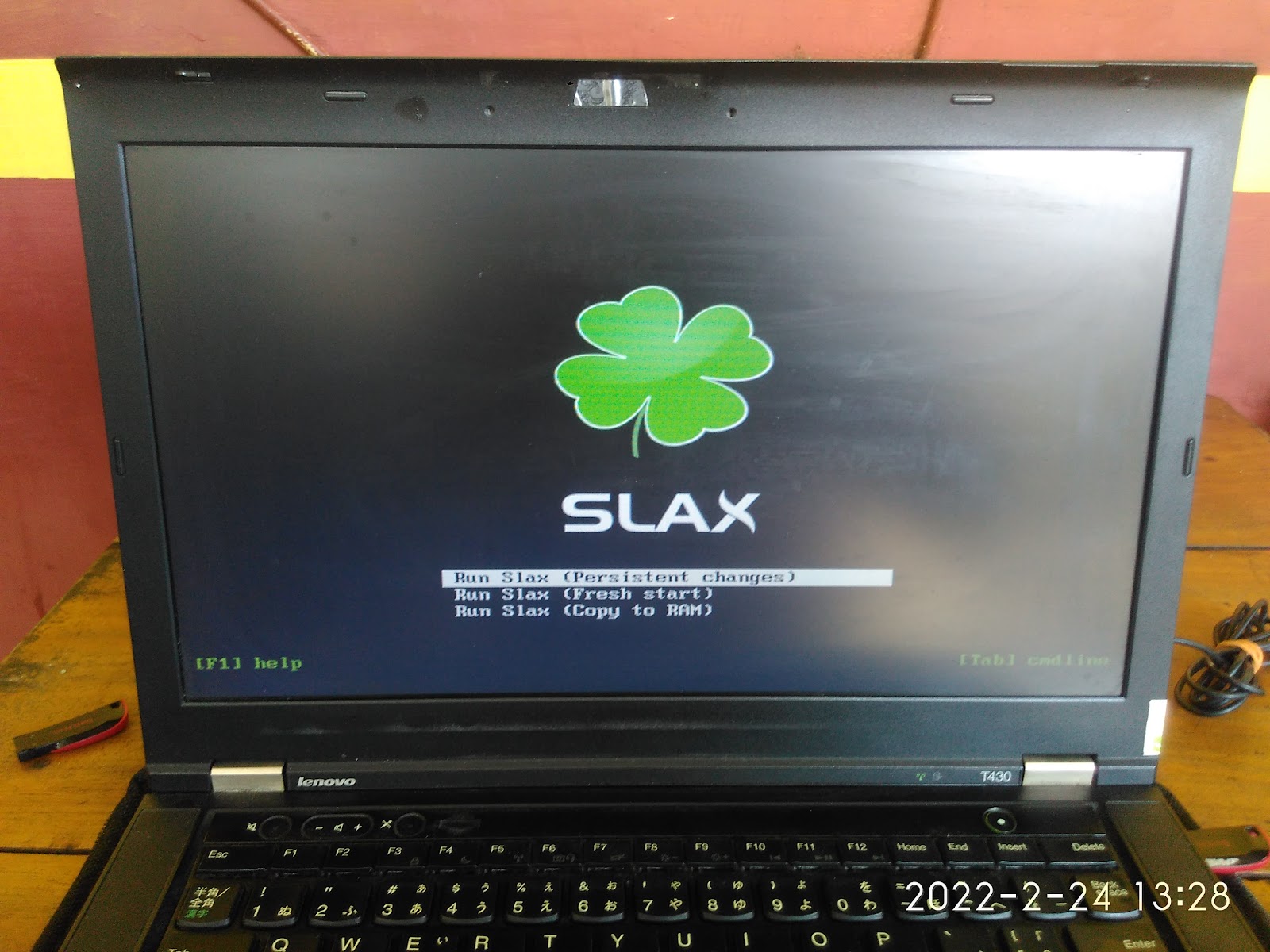
SLAX is a portable desktop operating system designed to run on removable media like USB stick. We covered it yesterday in a short review. However, we didn't make it clear how to make its bootable media. It's different to Ubuntu and another standard GNU/Linux distros in the making of its bootable as we cannot use image writing utilities like Rufus or Unetbootin. For that purpose, now we share with you how to make it from start to finish.


Subscribe to UbuntuBuzz Telegram Channel to get article updates.

SLAX is a modern, lightweight desktop operating system based on Debian GNU/Linux designed to run on a USB stick. It offers all software available on Debian repository and enables you in these years to run LibreOffice or Chromium Browser in just under half a GB memory, with tens of thousands software packages available for both old and modern computers, while any other OS cannot today. That's SLAX and we will discover it on this article. 

Subscribe to UbuntuBuzz Telegram Channel to get article updates.

This tutorial explains how to setup Zorin OS 16 to a computer for end-users. This includes methods to install either to internal hard disk or external drive storage, even a USB Flash Drive, dualboot or singleboot, and with either UEFI-GPT or BIOS-MBR options. Please make backup  if you are dualbooting and be extra careful following every single step. Let's start!

Subscribe to UbuntuBuzz Telegram Channel to get article updates.


Also in 2019, I shipped another GNU/Linux multiboot to Kalimantan Island, Indonesia. It was KNOPPIX --the first distro known to bring LiveCD technology--. And once again it was not supported by GLIM Maker. But fortunately, I managed to make it works by custom scripts. You can use scripts below to make KNOPPIX multiboot USB. Happy hacking!

Subscribe to UbuntuBuzz Telegram Channel to get article updates directly.


Continuing previous deepin and Vector, my customer from Sulawesi Island also ordered Parrot Security OS GNU/Linux in multiboot USB. GLIM Maker does not support Parrot as well. So I did modifications and managed to make it multibooted. You can use my scripts below to make it too. Happy hacking!


In December 2019, at the same time I shipped another multiboot GNU/Linux to different customer in Sulawesi Island, Indonesia. For this, my customer ordered deepin 15, but GLIM Maker cannot make it multiboot. To my experience, deepin ISO images work best if they made singleboot in a flash drive (similar to BlankOn's). So I edited the configuration code mimicking a singleboot's config and it worked. You can use my scripts below to make your own multiboot with depin as one among its OSes. Happy hacking!

Subscribe to UbuntuBuzz Telegram Channel to get article updates directly.


In December 2019 I managed to ship multiboot GNU/Linux to Sulawesi Island, Indonesia. One among operating systems in that USB flash drive is Vector. My customer ordered it so I cannot make it works multiboot with GLIM Maker as of course it is not supported (although the forum is still having new posts in 2020). The secret is, Vector is an old distribution based on Slackware with latest release dated back to 2015 and now it does not receive updates anymore. Fortunately, I finally can make custom GRUB configuration script so it works. You can learn my scripts however to make similar distros working or if someday Vector being actively developed again. Happy hacking!

Subscribe to UbuntuBuzz Telegram Channel to get article updates directly.

Continuing PCLinuxOS, this tutorial explains the configuration file for OpenMandriva Lx 4.0 --a beautiful RPM-KDE based operating system-- to boot in multiboot USB using GLIM tool. If you don't know GLIM, read first the tutorial. If you wonder, multibooting is important to save cost as you can run multiple distro installers by just one flash drive, without having multiple flash drives. To speak about config, OpenMandriva is very different to Ubuntu (even different to PCLinuxOS too) both in bootloader code and its internal ISO file structure. Thus, it will not boot from multiboot flash drive unless we write the correct code. I managed to ship a USB with it twice in Indonesia this month only. That's why I share my success with you here. Happy hacking!

(OpenMandriva runs in live multiboot mode from a USB flash drive)

Subscribe to UbuntuBuzz Telegram Channel to get article updates directly.

 (With a little configuration, Trisquel can be made USB multiboot with GLIM)

Trisquel is by default not supported by GLIM. So, this tutorial provides you support for Trisquel 8.0 "Flidas" for both Regular and Mini editions. In case you don't know, Trisquel is fully free software GNU/Linux distro that is user friendly based on Ubuntu. I publish this in 1 October 2019 so in the future GLIM may be changed to support Trisquel by default.

Subscribe to UbuntuBuzz Telegram Channel to get article updates directly.

 
(Multiboot USB website, list of supported distros, and openSUSE working after USB installation)

As you may know, my multiboot making tools were MultiSystem (since 2015), then Sundar's MultiBootUSB (2018), and recently GLIM (2019), but they all cannot work for openSUSE. Thanks to Aguslr, his program Multiboot USB (not to be confused with MultiBootUSB above) solved this problem for me! This means up to today I never managed to make openSUSE multiboot in a USB while I always managed to make other GNU/Linux distros work successfully such as Ubuntu family, Mint, Trisquel, Debian Regular, Elementary, even Fedora. In this article, I just report my success in making openSUSE Leap 15.1 multibootable USB and then installing it on a laptop. However, this article is just my report and I planned to publish tutorial on this Aguslr's Multiboot USB as soon as possible. Anyway, go ahead and happy working!

Subscribe to UbuntuBuzz Telegram Channel to get article updates directly.

(I use Rsync command to sell USB sticks with GNU/Linux)

Recently, I distribute GNU/Linux USB sticks with a bunch of video tutorials inside and I use Rsync command to copy the files with best reliability. I like Rsync because it is clear with progress and verbose messages, and in my cases it's often faster, more stable. I then use the same Rsync command to copy the ISO image files to USB as --you may know-- I am currently experimenting with GLIM and Aguslr's Multiboot USB tools. This works very well. Tutorial below shows you the command lines and examples.

Subscribe to UbuntuBuzz Telegram Channel to get article updates directly.

(Booting a USB stick with multiple GNU/Linux distros)

After MultiSystem (2015), and then Multibootusb (2018), now I found GLIM tool (2019) by Matthias Saou to easily create multibootable USB to run and install GNU/Linux distros. GRUB2 Live USB Multiboot (GLIM) is a user friendly program to setup any USB stick to run multiple GNU/Linux LiveCD systems with fancy bootloader. GLIM supports both 32-bit and 64-bit computer either with BIOS Legacy or UEFI. With GLIM you can have multiple OS installers in one USB drive, take example Ubuntu and Fedora and Mint, to install them to computers so it saves a lot of your time. The difference between GLIM and the two tools mentioned above is, that using GLIM is easier, you simply need to copy ISO images you want to your USB stick without running application. Awesome, right? Then, how to use GLIM? This tutorial explains it with examples in easy way and with screenshots. Go ahead and happy doing business!

Subscribe to UbuntuBuzz Telegram Channel to get article updates directly.


Previously, I have explained how to make it in Ubuntu. Now I explain here how to create USB bootable of any GNU/Linux distribution in Linux Mint using built-in program Mintstick USB Image Writer. This is very easy and you do not need to install any other tool such as Unetbootin or Rufus. I use Linux Mint 18.1 Serena Cinnamon Edition to explain it.

Subscribe to UbuntuBuzz Telegram Channel https://telegram.me/ubuntubuzz to get article updates directly. 


You can make any GNU/Linux bootable USB very easily by using GNOME Disk Utility program included in Ubuntu by default. This program named "Disks" on your Ubuntu menu. This means you don't need to install any additional program to do it, and even you can do it directly from a Ubuntu live session. It's just like having Unetbootin or Rufus program built-in. What you will do with this program is just loading a .iso file and write it into USB drive.

Subscribe to UbuntuBuzz Telegram Channel https://telegram.me/ubuntubuzz to get article updates directly. 

deepin 15.3 GNU/Linux operating system has released recently at 13 September 2016. Here is step by step tutorial to create USB bootable for deepin 15.3. We will not use Unetbootin to do it because we found booting error with it. Rather, we will use GNU dd command line here. dd is already installed in any GNU/Linux distribution, including Ubuntu and Fedora. Don't be afraid, it is easy nce you know how to do it step by step.


This tutorial explains steps about creating bootable USB drive of GNU/Linux distribution with UNetbootin or Rufus program. A GNU/Linux bootable drive is just like a DVD to boot and install Windows in your computer, except it is used to install GNU/Linux system. By using this article you can, for example, create Ubuntu bootable USB drive. It is not limited to Ubuntu, using UNetbootin/Rufus you can create bootable drive for another GNU/Linux distribution such as Fedora, openSUSE, Slackware, Linux Mint, or anything else with this tutorial. This tutorial explains UNetbootin for GNU/Linux and macOS users, while Rufus is for Windows users.