Showing posts with label spreadsheet. Show all posts

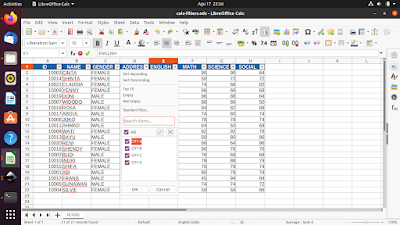
This tutorial will help you work with Filters feature in LibreOffice Calc (an alternative to Microsoft Excel) to create and use them. This feature, also known as AutoFilter, can help filtering and sorting out data in certain ways. You can download the document example below and go practice immediately. Now let's exercise!

Subscribe to UbuntuBuzz Telegram Channel to get article updates.
This collection of tutorials will help you learn LibreOffice Calc like Microsoft Excel. We published these gradually since 2022 and is still continuing. We hope these helps you all regardless your occupation being a student, a teacher or a worker. Happy studying!


Subscribe to UbuntuBuzz Telegram Channel to get article updates.

This is the ninth part of Calc Basics and here we will learn about the functions MIN and MAX to seek for minimum and maximum value. We still use the same exercise document following Part VIII from the series of this tutorial and you can download it below too. Now let's start the exercise.

Subscribe to UbuntuBuzz Telegram Channel to get article updates.

This tutorial will help you be more productive with LibreOffice Calc by taking benefit of the existing, thousands of Microsoft Excel's templates on the internet. Thanks to LibreOffice compatibility features, this is possible. With this, you can quickly make invoices, receipts, project management, budget plans, financial reports, bookkeeping, teacher/student records and many more. Let's try now! 

(A budget plan spreadsheet from Vertex42.com opened in Calc)

Subscribe to UbuntuBuzz Telegram Channel to get article updates.

Please welcome Cryptpad, an excellent Google Docs alternative from the free software community. For end-users, it provides online facilities of storage drive, text editor (pads), forms, spreadsheet, presentation, kanban boards, and a programming IDE. For self-hosting people, it is self-hostable with your own server and is able to integrate with OnlyOffice. Lastly, for everyone wanting to try it out, visit Cryptpad.fr to sign up and this article will help you getting started to it.

Subscribe to UbuntuBuzz Telegram Channel to get article updates.

This is the seventh part of Calc Basics and in this chance we will learn about VLOOKUP formula. For that purpose, we will make a simple student score viewer, so we can select a student's name for the computer to display his/her scores. As a reminder, if you haven't followed this Calc series, read the first and second parts here. Now let's try it. 


Subscribe to UbuntuBuzz Telegram Channel to get article updates.

This tutorial continues Calc Basics V and now we will learn a new formula namely ROUND. With this, we can simplify numbers. For example, we will simplify student scores based on the previous AVERAGE exercise. As a reminder, if you haven't followed this LibreOffice Calc series, read the first and second parts here. Now let's exercise again.

Subscribe to UbuntuBuzz Telegram Channel to get article updates.

This tutorial will explain with examples how to draw charts with LibreOffice Calc. You will need some data prepared beforehand. We will create very basic charts in form of Bar Charts to visualize student scores of their subjects of Math, English, Science and Social. This should gives a basic understanding of making charts. Let's try it now. 

Subscribe to UbuntuBuzz Telegram Channel to get article updates.

When you need to create a table quickly, for whatever numeric data in it, you can always use RANDBETWEEN formula in LibreOffice Calc. We prepare this tutorial for Creating Charts next time. Now, let's learn how to below. 

Subscribe to UbuntuBuzz Telegram Channel to get article updates.

Are you tired to do manual data entry into a spreadsheet? Would you like to make it easier with a form window? If you think this requires macros, no, it doesn’t require one. LibreOffice Calc can help you making data entry form instantly out of any table you have. Let’s create it now.
Subscribe to UbuntuBuzz Telegram Channel to get article updates.

This tutorial continues Calc Basics III now with LEFT, MID, and RIGHT formulas. By practicing this, you will be able to cut some text by number of characters to help you, for example, get first, middle and last names of students. Like usual, if you haven't followed this LibreOffice Calc series, read the first and second parts here. Let's start!


Subscribe to UbuntuBuzz Telegram Channel to get article updates.

In this second part, we will learn the most basic Calc formulas namely IF, SUMIF and COUNTIF after previously we learned about SUM, COUNT and AVERAGE by examples. These are kinds of formula which often used for decision making, such as making student's grade based on score, and stuffs around that. This tutorial is part of our LibreOffice Calc learning by practices for the formulas often used in jobs. Let's start!

Subscribe to UbuntuBuzz Telegram Channel to get article updates.

This tutorial explains how you can work with Calc, the spreadsheet program of LibreOffice, by learning its basic formula examples. In this first part, we will learn the most basic ones namely SUM, COUNT and AVERAGE. Let's start!

Subscribe to UbuntuBuzz Telegram Channel to get article updates.


If you have an XML sitemap file of a website, you can read it up on LibreOffice Calc easily. For example, you want to display the data for only the list of URLs. Before I tried it, I didn't realize how easy to do it. Here's how: