Showing posts with label dvd. Show all posts

We know that Debian in every release is distributed in multiple volumes of CDs and DVDs which are numbered 1, 2, 3 and so on. One Debian release may amount to 20 GigaBytes total or equal to dozens of CDs or DVDs.  Officially, Debian provides only CD1 and DVD1, while the rest of CD2 to CD50, DVD2 to DVD10, not provided in the Debian server and neither Debian mirrors. Although CD1 or DVD1 is sufficient to install Debian to computer, some people, like teachers and students, might want the additional CDs or DVDs for no internet access purposes. The official way to download the additional CDs or DVDs is by using a program called Jigdo. This tutorial explains how to do that simply and easily picture by picture.


Subscribe to UbuntuBuzz Telegram Channel to get article updates.

This tutorial explains Debian 11 installation procedures. This tutorial is suitable for everyone who wants either dualboot, UEFI or BIOS Legacy, normal or external storage method in installing Debian 11. The result expected from this installation is a ready to use Debian 11 with GNOME user interface, LibreOffice, Firefox and other daily software packages and you can have it stored not in internal hard disk in computer but a USB flash drive instead.


Subscribe to UbuntuBuzz Telegram Channel to get article updates.
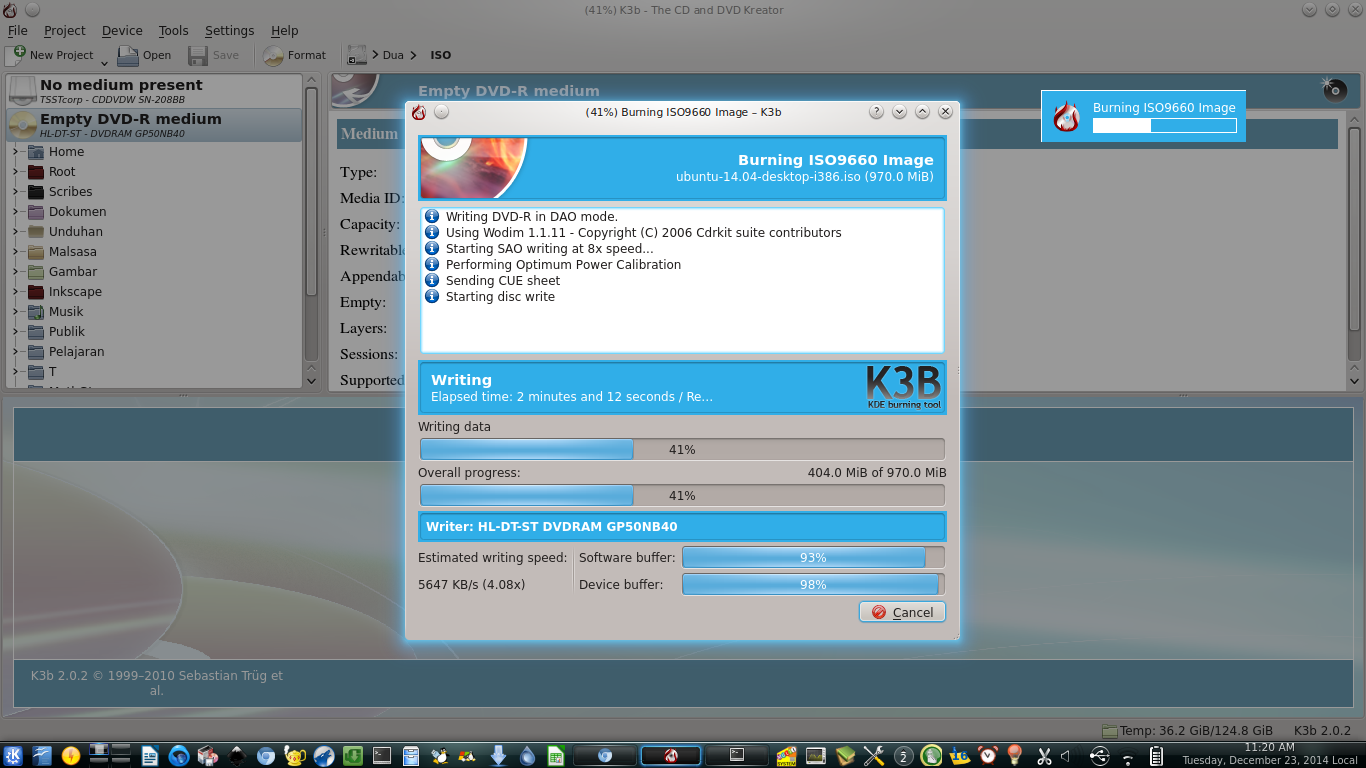
Ubuntu has a default CD burning program called Brasero. But for my DVD productions, I changed Brasero for K3B. I found that K3B is faster and more reliable. K3B is same with Brasero, a CD burning program. Now I want to show you how to install K3B and how to burn an ISO image to DVD with K3B. I use external DVD writer to do it.

K3B In Action

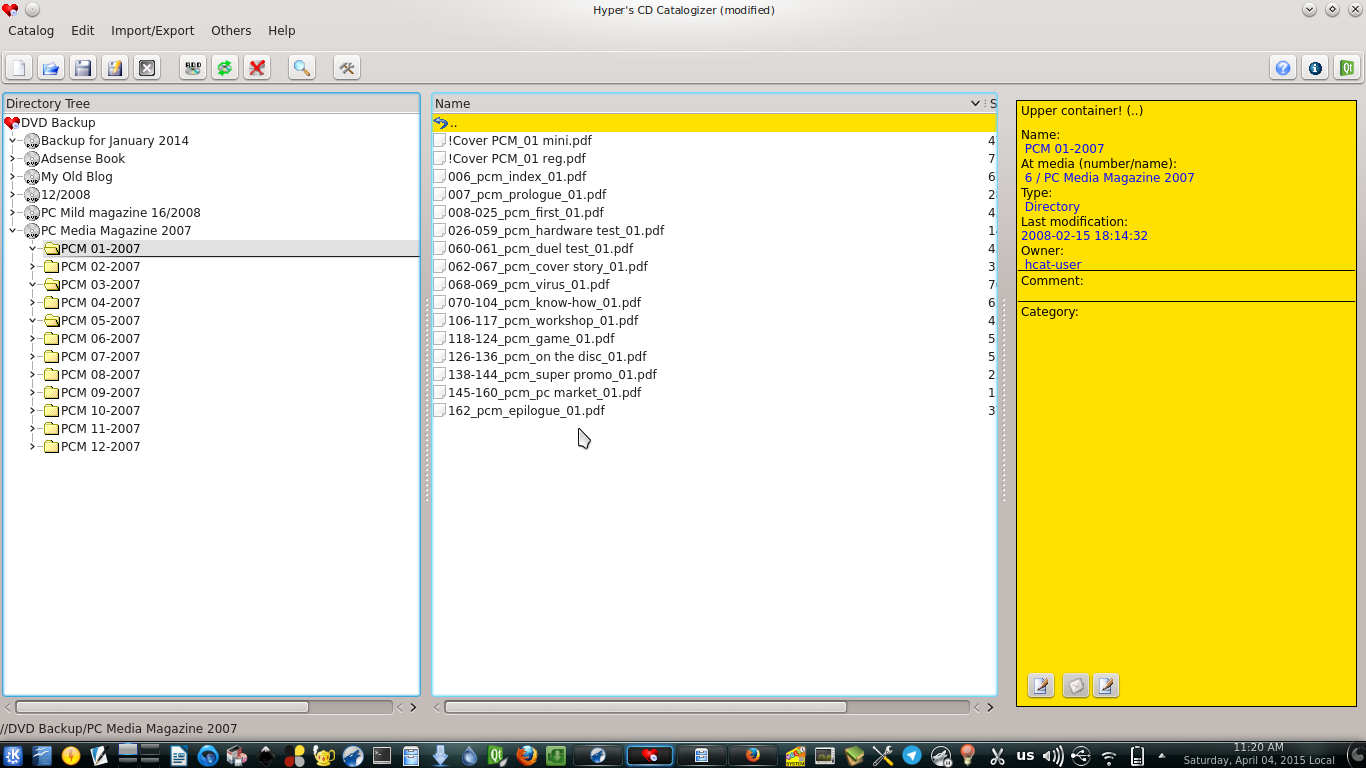
Do you create data backup from your PC into many CD/DVD? Do you want to search and find in what CD is your data? Do you want to make a catalogue of your whole system? CDCat (Hyper CD Catalogue) is a solution for those purposes. It will be your Google for your data backups. I was used CDCat as a replacement for Windows Cathy program for 5 years and satisfied with it. To use CDCat, you should scan your data storage first then you can search. CDCat official website is http://cdcat.sourceforge.net/web/uk/index.html.

CDCat in Action