Showing posts with label backup. Show all posts

Continuing my backup series after Syncthing and Operation Tulip, now we try to sync Ubuntu backup tool DejaDup with Nextcloud online storage. Thanks to this collaboration, we can automatically send newly saved photos or screenshots in Picture folder to our online storage. This simple tutorial explains how to do so.

 (Mint, an Ubuntu based system, does DejaDup backup easily to Nextcloud)

Subscribe to UbuntuBuzz Telegram Channel to get article updates.

Operation Tulip is an European online service based on Nextcloud technology with beautiful appearance that is free/libre open source software (also known as FLOSS). It is a solution for most people who cannot afford to setup a server computer themselves but want a secure, privacy respecting, full featured internet based storage and file sharing. By having a gratis account you can unlock yourself to try file manager integration, as well as calendar, contacts, backup, and phones synchronization that can be accessed anywhere anytime. Operation Tulip is one great example among others that are still coming and growing. This is a beginner's guide to Operation Tulip as well as more generally to Nextcloud usage. Let's try it out!


Subscribe to UbuntuBuzz Telegram Channel to get article updates.


It's surprisingly easy. You just need to copy .local/share/gnome-shell/extensions/ folder of your $HOME directory. To restore, just paste the /extensions/ directory back. This tutorial explains with pictures how to do it. This tutorial is based on GNOME 3.28 over Ubuntu 18.04 LTS but you will find it's applicable to another GNOME systems as well. Enjoy!

Subscribe to UbuntuBuzz Telegram Channel to get article updates directly.

The Zotero export/import feature is not suitable for backup. The best way to backup is to copy the Zotero directory completely. You won't find any missing images, CSS, or another files by doing this backup. Here, how to do it.

Systemback is a remastering and system restore tool for Linux. With Systemback, you get again what you lost from Remastersys (abandoned) or Windows System Restore. Systemback keeps your configurations, software installations, themes, and the whole system so it is suitable to make a Linux remaster. You can make a whole backup of your system periodically then revert back into previous state of your Linux system. For Ubuntu 14.04, 15.04 and 15.10, there is a PPA for Systemback. Thanks to Kedek for providing this PPA.

Using Terminal


sudo apt-add-repository --yes ppa:nemh/systemback
sudo apt-get update
sudo apt-get install systemback
Those commands will add a new repository named ppa:nemh/systemback into your Ubuntu system, then download the repository indexes, and then install Systemback. Option --yes assumes you will always answer yes for every question.


Using Synaptic GUI


Using GUI is often much more easier. Open your Synaptic first.
  1. Open menu Settings > Repositories > Other Software > press Add
  2. Write ppa:nemh/systemback > press Add Source. 
  3. Press Reload button.
  4. Search for systemback.
  5. Click systemback from search result > Mark for Installation > Apply. 
  6. Wait until finished.

Reference


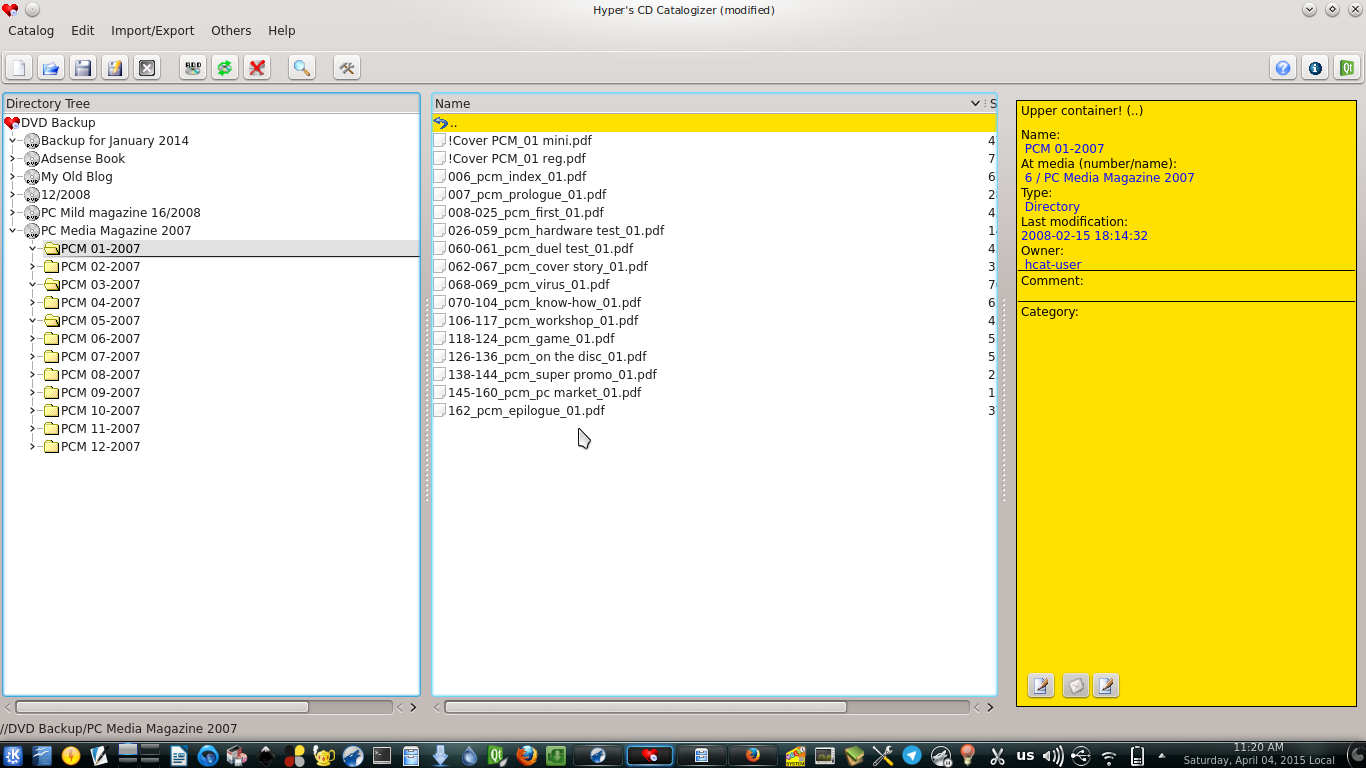
Do you create data backup from your PC into many CD/DVD? Do you want to search and find in what CD is your data? Do you want to make a catalogue of your whole system? CDCat (Hyper CD Catalogue) is a solution for those purposes. It will be your Google for your data backups. I was used CDCat as a replacement for Windows Cathy program for 5 years and satisfied with it. To use CDCat, you should scan your data storage first then you can search. CDCat official website is http://cdcat.sourceforge.net/web/uk/index.html.

CDCat in Action

Ever wondered how you can create a backup of your Ubuntu Installation with all the applications you installed which you 've collected after reading articles like this on Internet along with your home folder with all your documents and user settings such as custom icons, themes, plymouth boot splash, grub splash screen etc.,? or how you can make a customized version of your Ubuntu installation with the applications you need and clone it to the other machines in your office, without doing all the downloads and add PPA stuff etc on every single machine ?, or redistribute your custom build to your friends who don't have high internet bandwidth to download all the application they need ? Or just flaunt your customized Linux Distro (with your name and customized branding) within your circle and become a cool geek ?

Then Remastersys is the tool you are searching for.