
Showing posts with label opendocument format. Show all posts

LibreOffice 7.5 released Thursday 2 February 2023. This free libre and open source office suite is now available for all computer users especially those who use GNU/Linux, Microsoft Windows and Apple MacOS. It brings out a lot of improvements and new features, and among them, visual identities. Thank you to all the developers and contributors. Congratulations to the whole LibreOffice Community!

(Writer, Calc and Impress 7.5 opening two documents from the official Press Kit)

Subscribe to UbuntuBuzz Telegram Channel to get article updates.
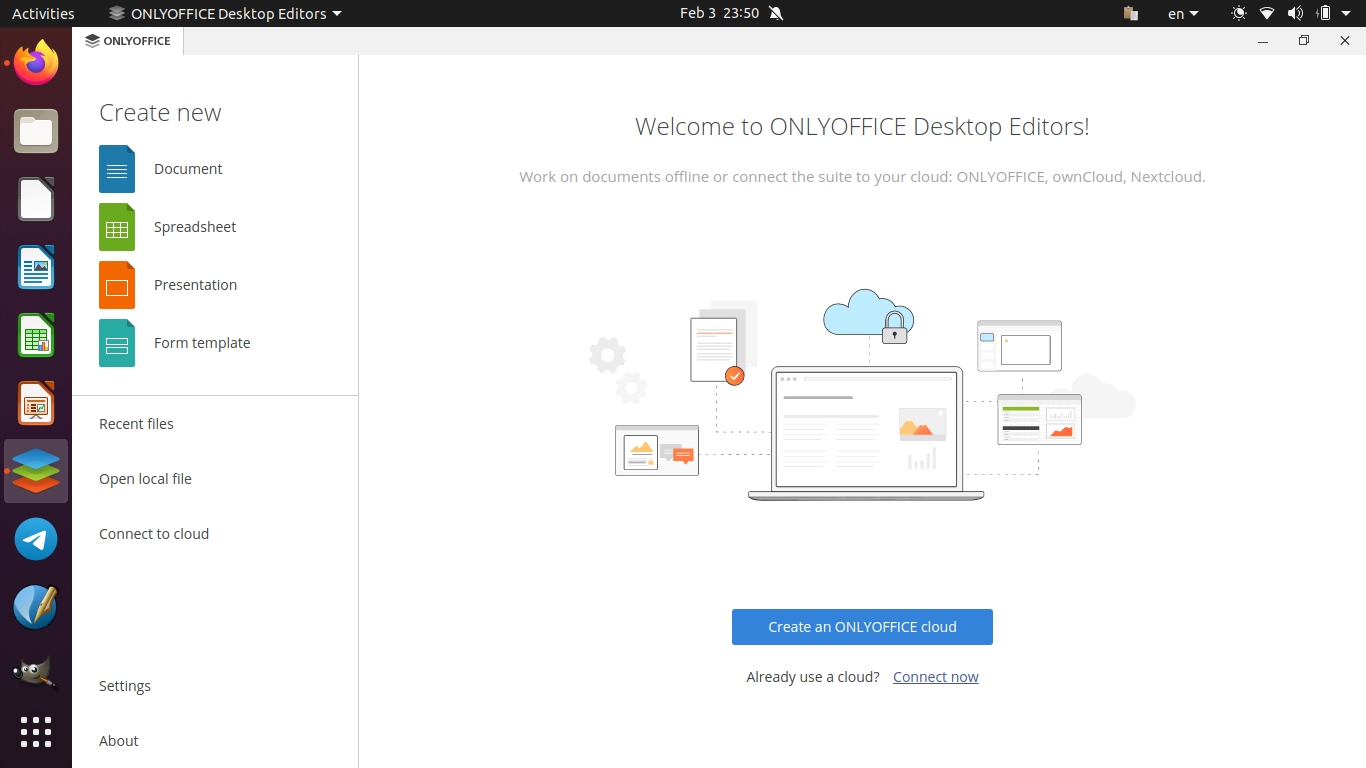
This tutorial will help you to add version 7.3 of OnlyOffice Desktop Editor to your Ubuntu computer. You can do it easily using Ubuntu Software or alternatively Terminal. Happy writing!


Subscribe to UbuntuBuzz Telegram Channel to get article updates.

This tutorial will help you create course marketing using LibreOffice Writer. This can also be used for other marketing purposes such as culinary and medical. We have already prepared the pictures and text and you can download them then try the exercises at home step by step to achieve the final product. We make this as avid users of Ubuntu and fans of Canonical. Happy writing!


Subscribe to UbuntuBuzz Telegram Channel to get article updates.

This tutorial will show you an example of converting numbers to words with a function in LibreOffice Calc. It works by translating number, say 1234, into English words one thousand two hundred thirty four. The function in question is NUMBERTEXT, that spells numbers, and MONEYTEXT, that spells money currencies, all with translations to multiple languages including Chinese, German, Japanese, Korean, and Indonesian.
 

Subscribe to UbuntuBuzz Telegram Channel to get article updates.

This is a LibreOffice Calc calendar of 2023 made ready for you to download, import as template and print. We offer it as editable OpenDocument Spreadsheet (ODS) files and PDF. We use a template by Claus Kofoed Nielsen from Denmark. Feel free to download and make yourself more productive!

Subscribe to UbuntuBuzz Telegram Channel to get article updates.

This tutorial will show you how to create Pivot Table using LibreOffice Calc -- the complete, free spreadsheet program for everyone. We will learn with examples and pictures by using a simple sales table to create sales report with multiple pivot tables we want. Now let's exercise!

Subscribe to UbuntuBuzz Telegram Channel to get article updates.
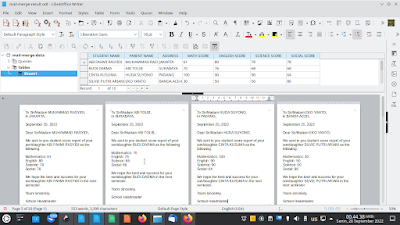
This tutorial will help you to create mail merge with LibreOffice explained step by step with pictures and examples. Mail merge is a method of making stuffs consisted of multiple personalized copies like official letters, invitations, envelops, identity cards, student score reports etc. using word processor, spreadsheet and database. Finally, in this exercise we will make school letters for students' parents as an example so you can practice and then adapt it to your own needs. Let's study now!


Subscribe to UbuntuBuzz Telegram Channel to get article updates.

This tutorial explains how to create and insert Quick Response (QR) codes in Writer, the word processor program of LibreOffice. Why we learn to make QR Codes? Because today, QR Codes are popular thanks to smartphones so people can quickly access  address you're point to in your publications like books, registration papers, flyers, posters, etc. This requires Writer 6.4 or later and does not require other program. Now let's do it!

Subscribe to UbuntuBuzz Telegram Channel to get article updates.
This is a collection of LibreOffice Writer tutorials for beginners published over the years by the Ubuntu Buzz. It covers the most basic exercises like basic writing, inserting pictures and tables, and dealing with page as well as paragraph styles. They are adapted with the hope to be useful and suitable for those who have background in Microsoft Word. We wish you would find Ubuntu, LibreOffice and Free Software community a safe home full of happiness and success.
Subscribe to UbuntuBuzz Telegram Channel to get article updates.

This tutorial explains how you can install LibreOffice version 7.0 and later on an Ubuntu computer with several choices of installation methods namely AppImage, DEB, PPA, Snap and Flatpak sorted by difficulty from beginner to advanced. Thanks to these choices, you who have computer with GNU/Linux distros other than Ubuntu can also practice this. Now let's install it.

Subscribe to UbuntuBuzz Telegram Channel to get article updates.

Continuing LibreOffice Shortcuts poster, here's educational poster I made to spread LibreOffice's ODT - ODS - ODP to all people in all countries. These formats are known with the name Open Document Format and these are better than Microsoft's. The goal of this poster is to invite people to change their habits of saving as DOC - XLS - PPT formats into saving as ODT - ODS - ODP formats which are better. This poster is an English adaptation of my Indonesian version few years ago. I encourage you to place this on your schools, offices, websites, blogs, social media, and other places. You are free to adapt and share it with your own language. If you are curious, download LibreOffice application here for Windows, macOS and GNU/Linux. Okay, now let's share once again!

Original version:


 Horizontal version:


Individual versions:

Open Document Text (Writer):

Open Document Spreadsheet (Calc):

Open Document Presentation (Impress):

Open Document Drawing (Draw):

Downloads:

Poster in PNG: opendocumentformat.png (300 dpi, 400 kilobytes)
Individuals in PNG: odt-writer (100 kilobytes) | ods-calc (100 KB) | odp-impress (100 KB) | odg-draw (100 KB)
Edit: opendocumentformat.svg (300 kilobytes) 
Comments: I created this poster with Inkscape free vector drawing program just like the LibreOffice Shortcuts poster.
License: I dedicate this poster design completely in Public Domain using CC0


More posters are coming...


This article is licensed under CC BY-SA 3.0.


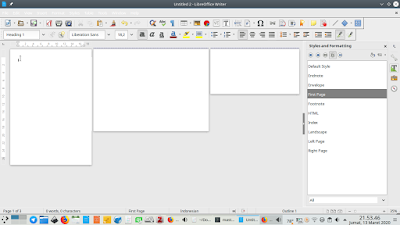
Page Styles are page designs. It is similar concept to Headings and Paragraph Styles but applied to pages instead. With them, you can make different page numbering in one document such as Roman first and Arabic later just like in academic writings. Alternatively, you can also make a document with different page orientations and/or margins as you wish. You can either use existing or create new ones of them. However, the secret of success in using Page Styles is a thing called Manual Break. This tutorial explains step by step to use them with examples. Enjoy writing!

(LibreOffice Writer document with different page designs)

Paragraph Style is paragraph design with a certain name. This is about how text looks around another text in same document. As you have learned from previous article, Headings in turn are actually Paragraph Styles for titles. With Paragraph Styles, you can make for example a small story book with a group of text which is normal surrounding another group of quotation text with different look, named NormalText and QuotesText respectively. To write your book, you just need to write whole text without formatting as plain text. To finish it, select some text to apply NormalText Style and select another to apply QuotesText Style. That's it! This way you save your time to do repetitive formatting as you have already designed their Paragraph Styles. For most cases, you even do not need to create a custom one as LibreOffice Writer already prepared many you can choose. You can also modify Paragraph Styles available if you wish.In this article we will learn how to use Paragraph Styles with examples. Happy writing!

(Writer text document with several different Paragraph Styles applied)
Subscribe to UbuntuBuzz Telegram Channel to get article updates directly.


After learning about LibreOffice Writer's user interface and basic text formatting, we will learn about Views and Document Navigation so we can see better and moving around text more quickly. You will learn about two views, Normal and Web, and also three paging modes, Single-Multiple-Book. You will also learn about how to use zoom features and Navigator dialog. Lastly, you will learn to hide and show several important stuffs such as Rulers, Grid, and Pictures which in turn can help you reduce computer memory usage. Happy learning!

Subscribe to UbuntuBuzz Telegram Channel to get article updates directly.

Headings are automatic text styles used as titles. Headings are important parts of a document. Every heading is remembered by Writer and can be used to navigate, jump here and there, within long document quickly. You can use headings for titles and sub-sections; and on the other hand thanks to them you can also create table of contents like explained previously. PDF document you created if you used headings will show automatic table of contents as navigation items. We need headings when writing books and following a certain academic paper standard such as APA Style. LibreOffice Writer provides nice headings including ability to suit them to your needs. This tutorial explains the use and creation of headings by examples and pictures. Happy writing!

 (Writer document with 3 level headings applied and Navigator shows them on right-side panel)
Subscribe to UbuntuBuzz Telegram Channel to get article updates directly.


Continuing Writer #1 Master Method, now we are trying a different method to merge multiple documents with menubar Insert. This method is done one by one so it is suitable for an author who prefers everything done manually. You will learn by examples you can download freely once again and final result is a ODT with 300 pages long you can export easily into a PDF. Let's go and happy learning!

Subscribe to UbuntuBuzz Telegram Channel to get article updates directly.


With LibreOffice Draw, you can make network diagram just like you did with Visio (or GNS3 or even Cisco Packet Tracer). The problem is that icons for networking, such as server, router, firewall, workstation, cloud, etc. are not included by default. Fortunately, the solution is you can add such icons as plugins in Draw and then use it to make diagram.  Thanks to the awesome VRT project, now we have it on LibreOffice. This tutorial explains step by step to install VRT extension into LibreOffice Draw until you can see networking icons available. Enjoy!


Subscribe to UbuntuBuzz Telegram Channel to get article updates directly.


In this article, you will learn the basics of LibreOffice Writer which are how to create, save, and open document & understand what formats are supported. You will learn the menubar, dialog window, and options available for that. You will find Writer useful because it supports both Open's and Microsoft's formats which are ODT and DOCX along with others like PDF, EPUB, RTF, and HTML. By learning this article, you will be able to create any document with any format on Writer. Happy learning!

Subscribe to UbuntuBuzz Telegram Channel to get article updates directly.


On our computer, if LibreOffice is installed, then we will find Writer word processor in the start menu. This article explains how to run and close Writer on Ubuntu GNU/Linux as an example for other systems. I also added advanced method here we can use whenever some problem occurred. Let's start learning.

Subscribe to UbuntuBuzz Telegram Channel to get article updates directly.


Do you know that LibreOffice has Master Document feature? This feature allows you to join multiple documents, rearrange them, and then save them as one joined document. We can use this feature to quickly and easily merge ODT files into one. I will give you example by joining 10 transcript documents into single ODT or PDF file with a total of 600 pages with 90 pictures inside. Don't worry as you can download that examples below. Let's learn!

Subscribe to UbuntuBuzz Telegram Channel to get article updates directly.