
Showing posts with label iso. Show all posts

Making bootable drive is an important thing to all computer users. Previously my articles about it using the tools GNOME Disk Utility, GNU dd, MultiSystem, and GLIM, reached incredible success indicating that many people need it. Now as deepin GNU/Linux 20 released with new technology especially the tool Boot Maker, and it is wondefully easy to use, computer users can use that to make bootable flash drive of any operating system images. This tutorial explains in step by step on using it. Let's go!

(This is you new tool to create bootable usb)
Subscribe to UbuntuBuzz Telegram Channel to get article updates.


zsync can extremely reduce your download size so it's suitable for huge ISO image transfers. For your information, Ubuntu provides .zsync files for all its ISO images. You can use zsync console to get the 17.04 release without downloading from zero the whole 1.5GB. I write this article to welcome Ubuntu 17.04 Zesty Zapus soon and I hope this helps you.

Subscribe to UbuntuBuzz Telegram Channel to get article updates directly.


zsync can help you to cut in half or more of your download size of a GNU/Linux distro. With zsync, if you already have an older version of Ubuntu image, you only have to download "the change" between it and the newer image on the server. zsync is very efficient in bandwidth and time, saving resources for both the server and the user. This way, using zsync can reduce your download cost extremely.


With the built-in program called GNOME Disk Utility, you can create an .iso image file back from a bootable USB drive. This feature is important, for example, when you lose the actual .iso file despite you still have the already written USB bootable. This article explains how to re-create such ISO image in Linux Mint and it's also applicable to Ubuntu.


You can make any GNU/Linux bootable USB very easily by using GNOME Disk Utility program included in Ubuntu by default. This program named "Disks" on your Ubuntu menu. This means you don't need to install any additional program to do it, and even you can do it directly from a Ubuntu live session. It's just like having Unetbootin or Rufus program built-in. What you will do with this program is just loading a .iso file and write it into USB drive.

Subscribe to UbuntuBuzz Telegram Channel https://telegram.me/ubuntubuzz to get article updates directly. 

K3B is a good tool to copy a CD or DVD into ISO. For example, I want to create a backup for Ubuntu 9.04 CD I got from Canonical ShipIt few years ago. I can use K3B to rip the CD into an ISO. I will show you how to do it.


You can boot Linux ISO directly from your HDD with grml-rescueboot utility. You don't need a CD, DVD, or USB drive anymore. You don't need to burn anything. And no need to formally configure anything. Just put an ISO then update your GRUB and it's done. Actually, grml modifies your GRUB to recognize an ISO you provide and to boot it. Finally, you can have more than one ISO to boot at any time you start your computer.

Boot Linux ISO Directly from The HDD

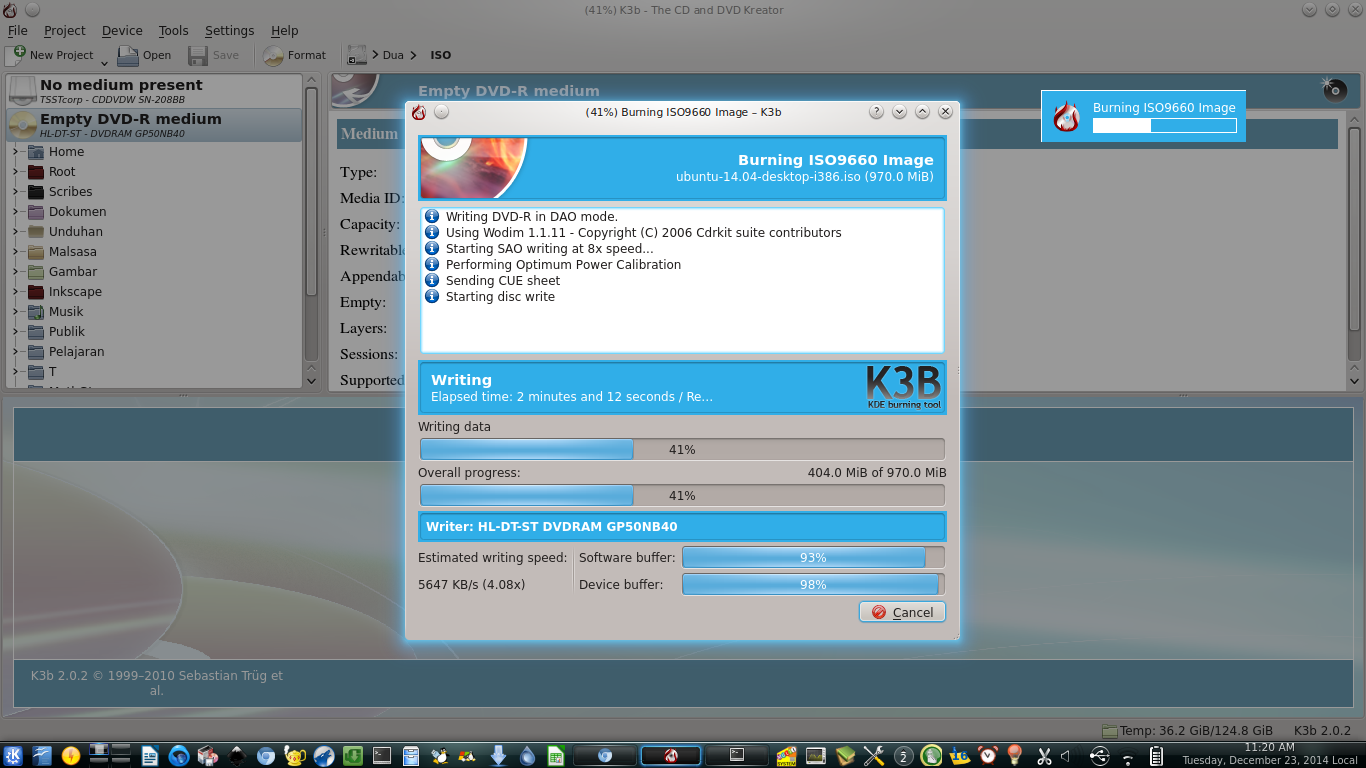
Ubuntu has a default CD burning program called Brasero. But for my DVD productions, I changed Brasero for K3B. I found that K3B is faster and more reliable. K3B is same with Brasero, a CD burning program. Now I want to show you how to install K3B and how to burn an ISO image to DVD with K3B. I use external DVD writer to do it.

K3B In Action

Unetbootin is a burning tool for ISO to create bootable USB drive. It is open source and licensed under GNU GPL version 2. Unetbootin is a software by Geza Kovacs. Unetbootin official site is on Sourceforge, Launchpad Translations, and it has Github page (if you want to contribute). This article will show you how to install and use Unetbootin on Ubuntu.

Unetbootin Main Window

We can make a bootable USB flash drive containing more than one operating system. This drive called multiboot drive. You can make it from Linux by using Multisystem. I show you how to use Multisystem to create Ubuntu, elementary OS, Fedora, and Antergos inside a 16 GB USB drive.

Multisystem